Categories
Blog posts about QNAP's products and technologies.
The three most important measures to protect a NAS against ransomware are: never expose the NAS directly to the internet, install security patches as soon as they are released, and maintain at least one backup that ransomware cannot access (offline or immutable). Implementing these three measures can significantly reduce the potential damage caused by a ransomware attack on a NAS.
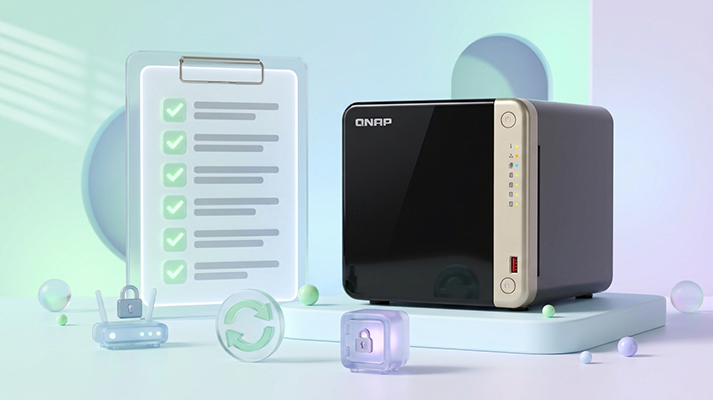
This checklist covers 6 key categories and 27 items, and is designed for NAS environments in homes, SOHO setups, and small and medium-sized businesses. You don't need a cybersecurity background to perform the checks.
| Item | Details |
| Target Audience | Home NAS users, SOHO users, and SMB IT administrators |
| Applicable Systems | Examples are based on QNAP QTS / QuTS hero, but the security principles apply to NAS devices across all brands. |
| Last Updated | November 2026 |
NAS devices are highly prone to ransomware attacks because they store valuable data in one centralized location and remain connected to the internet 24/7. Photos, documents, and business data from homes and companies are often stored on NAS devices. Many users also configure remote access so they can connect to their NAS from outside their homes or offices. Think of it this way: it's like putting all your valuables in a single safe and then leaving that safe right outside your front door. An attacker adds another lock to the safe and demands a ransom in exchange for unlocking it. The more valuable the data, the more victims are willing to pay, making NAS devices high-value targets for cybercriminals.
The most common security vulnerabilities stem less from sophisticated technology than from everyday misconfigurations: active router port forwarding, neglected firmware or software updates, default administrator accounts left enabled, and backups stored on the same device as the source data. This is why all three measures must be implemented together: keeping the NAS off the public internet, patching promptly, and maintaining offsite backups.
The checklist items are arranged by priority. The practices outlined here represent industry-standard security measures applicable to any NAS brand. Corresponding QNAP NAS features are provided in parentheses as a practical reference for QNAP users during device configuration.
1. Connect the NAS behind a router rather than directly to a modem or assigning it a public IP address.
2. Disable UPnP, DMZ, and port forwarding on the router. If opening ports is necessary for business operations, at a minimum, do not forward NAS management or file transfer ports (such as HTTP 80/8080, HTTPS 443, SMB 445, FTP 20/21, and passive port ranges). Additionally, disable remote management on the router's WAN interface and verify that the IPv6 firewall blocks inbound connections from external networks, preventing internal services from direct internet exposure.
3. Run a security check to verify that the NAS is not exposed to the internet (Security Center → Security Checkup).
4. Use a VPN or a connection method that does not require opening ports for remote access (QVPN Service, myQNAPcloud Link).
5. Disable unnecessary services and remove those no longer in use (such as Telnet, SSH, and Web Server). Every additional externally accessible service expands the potential attack surface.
6. Enable automatic operating system updates (Control Panel → Firmware Update).
7. Enable automatic application updates. Uninstall applications that are no longer in use rather than simply disabling them (App Center).
8. Subscribe to the vendor's security advisories and install updates immediately upon the announcement of high-risk vulnerabilities (QNAP Security Advisories). Vulnerabilities confirmed to be actively exploited should be addressed within two weeks at the latest, in accordance with the requirements set by the U.S. Cybersecurity and Infrastructure Security Agency (CISA) for federal agencies.
Note: Enabling automatic updates (Item 6) should allow most updates to be completed within this timeframe.
9. Check whether the NAS model has reached end of life (EOL). EOL models no longer receive security patches and must be disconnected from the internet, restricting their use to the internal network only. Enterprise IT operations teams should be responsible for managing these devices and planning their replacement (Product Support Status).
10. Disable the default "admin" account and create a separate administrator account. (The default admin account is disabled by default in QNAP QTS 5.2.0 / QuTS hero h5.2.0 and later.)
11. Enable two-factor authentication (multi-factor authentication, MFA) or passwordless login for all accounts. This should apply to regular user accounts as well as administrator accounts.
12. Enable access protection to automatically block IP addresses or disable accounts after multiple failed login attempts.
13. Use a standard, non-administrator account for file access.
If a computer is infected, ransomware can encrypt files on the NAS using the credentials of the account connected to it. The extent of the damage depends entirely on the write permissions granted to that account. If an administrator account is used to connect to the NAS, all folders on the device may be encrypted, and even snapshots may be deleted. (If the NAS itself is compromised, all data is at risk.)
14. Regularly delete accounts belonging to former employees and those that are no longer in use.
Start with These Three Steps: The Minimum Setup for Home Users
If implementing the full 3-2-1-1-0 backup strategy seems overwhelming, start with the following three steps. They help ensure that your data remains recoverable even if it is encrypted by ransomware.
These three steps address two particularly important components of the 3-2-1-1-0 backup strategy: keeping a backup separate from the NAS and regularly verifying that the backup can actually be restored.
If you are using a NAS for business or want to establish a more comprehensive backup strategy, refer to the full checklist below:
15. Adopt the 3-2-1-1-0 backup rule: maintain 3 copies of data, use 2 different storage media, keep 1 copy offsite, maintain 1 offline or immutable copy, and ensure 0 errors during recovery.
16. Store at least one backup on a separate device or in the cloud, and retain multiple versions. If only the latest version is retained, it could be overwritten by encrypted files (Hybrid Backup Sync 3).
17. Keep at least one backup disconnected from the network under normal circumstances, connecting it exclusively when performing backups (Airgap+).
18. Make at least one backup immutable. It cannot be modified or deleted through normal operations during its retention period. Even if administrator credentials are compromised, the backup remains intact (WORM folders in QuTS hero, myQNAPcloud One).
19. Regularly perform actual restores from backups to verify that files can be opened successfully. Having backups is meaningless if critical data cannot be recovered when needed.
20. Schedule daily or weekly snapshots for critical data (Storage & Snapshots → Snapshot Manager). QuTS hero allows snapshots to be configured individually for each shared folder, while QTS manages snapshots at the volume level. It is recommended to store critical data on volumes with snapshots enabled.
21. Set a retention period for snapshots and enable deletion protection. Snapshots cannot be modified or deleted through normal operations during the retention period. Even if administrator privileges are compromised, the snapshots remain intact (Smart Versioning, Immutable Snapshots).
22. Replicate snapshots to another NAS (Snapshot Replica; QuTS hero also supports SnapSync).
23. Enable Smart Snapshot Space Management to prevent snapshot creation from stopping due to insufficient storage space.
24. Schedule scans at least once a month and enable "Abnormal File Activity Monitoring" (Security Center).
25. Enable basic firewall protection and configure your region (QuFirewall's Basic Protection).
26. Schedule malware scans to run once a day (Malware Remover).
27. Configure automatic email notifications for "Warning" and "Error" events (Notification Center).
If file extensions suddenly change to unfamiliar formats, the files may have been infected with ransomware. Most ransomware uses encryption methods that cannot be broken, meaning files cannot be opened without the correct decryption key. In most cases, the only way to recover your data is through backups or snapshots. Follow these steps in the order listed below:
Is My NAS Secure? How Can I Check?
First, check whether your NAS can be accessed directly from external networks. Run the security check provided by the manufacturer (for QNAP, use Security Checkup in Security Center). If a warning indicates that your NAS is directly accessible from the internet, it means the device is exposed.
How Can I Tell If My NAS Is Infected with Malware?
The following signs may indicate a malware infection: unusually high CPU utilization, inability to update software, or unfamiliar applications appearing in the application management interface. Start by running a scan with the latest version of the malware scanning tool (for QNAP, use Malware Remover). If the issue persists, contact the manufacturer's technical support team.
What Are the Minimum Data Protection Measures for a Home NAS?
Start with these three steps: ① Automatically take daily snapshots on the NAS. ② Maintain an additional backup outside the NAS, such as a USB external hard drive that is normally disconnected or cloud storage services such as myQNAPcloud One. ③ Several times a year, restore a file from your backup to verify that it works. For more details, see the section in this article titled "Start with These Three Steps: The Minimum Setup for Home Users".
What Is an Immutable Backup?
An immutable backup is a backup that cannot be modified or deleted during a specified retention period. A common implementation is WORM (Write Once, Read Many) storage. Even if an attacker gains administrator privileges, the data cannot be modified or deleted through normal operations during the retention period. However, once the retention period expires, the data can be deleted. Therefore, setting an appropriate retention period is important. QNAP examples include WORM folders in QuTS hero, which uses the ZFS file system, and myQNAPcloud One (WORM in myQNAPcloud Storage and Object Lock in myQNAPcloud Object).
What Is the Difference Between 3-2-1 and 3-2-1-1-0 Backup Strategies?
The 3-2-1 backup rule requires keeping three copies of data, storing them on two different types of storage media, and keeping one copy offsite. The 3-2-1-1-0 rule adds two more requirements: one offline or immutable copy, and zero recovery errors (regular restore testing).
Is Having RAID Enough to Protect Against Ransomware?
No. RAID only protects against hard drive failures. It cannot protect against accidental deletion, accidental modification, or data that has been encrypted. RAID is not a substitute for backups.
Does File Synchronization (Sync) Count as a Backup?
No. Synchronization replicates changes made to the original files directly to the destination. If a file is encrypted or deleted, the same change is also reflected at the destination. Backups, on the other hand, preserve previous versions of files, allowing data to be restored to its state before the changes occurred.
Are Snapshots Enough, or Do I Still Need Backups?
Snapshots cannot fully replace backups. Snapshots and the original data are stored on the same set of hard drives, and they may also be deleted if administrator privileges are compromised. In the event of complete hardware destruction, storage pool failure, or formatting of the underlying storage, the snapshots will be lost as well. Effective protection requires a complementary approach: use snapshots as the first line of defense for rapid recovery, and offsite, offline, or immutable backups as the last line of defense.
Is Completely Disconnecting My NAS from the Internet the Safest Option?
It is not recommended. Completely disconnecting the NAS from the internet prevents it from receiving security updates and notifications. The key is to restrict incoming connections from external networks. If you need remote access, choose a connection method that does not require opening router ports. Using a VPN or a vendor-provided relay-based remote access service allows you to remotely access the NAS without exposing it to the internet (QNAP offers QVPN Service and myQNAPcloud Link).
If My NAS Is Not Exposed to the Internet, Do I Have Nothing to Worry About?
That does not guarantee absolute security. If devices such as home or office computers become infected, the threat may spread from those endpoints to the NAS. Businesses can also consider implementing mechanisms to detect suspicious activity on their internal networks (for example, QNAP's ADRA NDR X internal network security solution).
What Do Repeated Failed Login Alerts Mean?
If the login attempts originate from external IP addresses, your NAS is being targeted by brute-force attacks (repeated login attempts using numerous password combinations), which means it has been exposed to the internet. Check your router settings immediately. If the attempts originate from internal IP addresses, check whether the computers associated with those addresses are infected with malware.
Can I Still Use an Older NAS Model or One That Has Reached End-of-Support?
Yes, but it is recommended to disconnect it from the internet, restrict its use strictly to the internal network, and maintain comprehensive backups. Models that have reached end of support no longer receive security patches, leaving newly discovered vulnerabilities unaddressed.
No system is completely risk-free. True security comes from continuous patching and architectural improvements, combined with secure operating environments and sound configuration practices. Since 2019, QNAP NAS devices have been targeted by ransomware such as eCh0raix. In 2021 and 2022, application vulnerabilities in QNAP products were also exploited by ransomware, affecting some users. We have learned valuable lessons from these incidents and implemented substantial improvements to our security engineering and architectural design. These initiatives include enforcing mandatory automatic application updates, enabling native snapshots by default, and deploying firewall rules to block malicious traffic. Many of the items in this checklist are based on the investigation and incident response experience gained during those events.
QNAP established its Product Security Incident Response Team (PSIRT) in 2017 and was authorized by MITRE as a CVE Numbering Authority (CNA) that same year. The company has also operated a vulnerability rewards program since 2022. For high-risk vulnerabilities, QNAP also prioritizes updating malware definitions through Malware Remover to block attacks until the firmware update is completed. These practices are publicly documented in the QNAP Trust Center.
AI Disclosure: Some images and text in this article were created or refined with the assistance of Artificial Intelligence (AI) and reviewed by human editors.
