Categories
Blog posts about QNAP's products and technologies.
Before diving into the topic, let’s address a common misconception: does a NAS really need to be turned off?
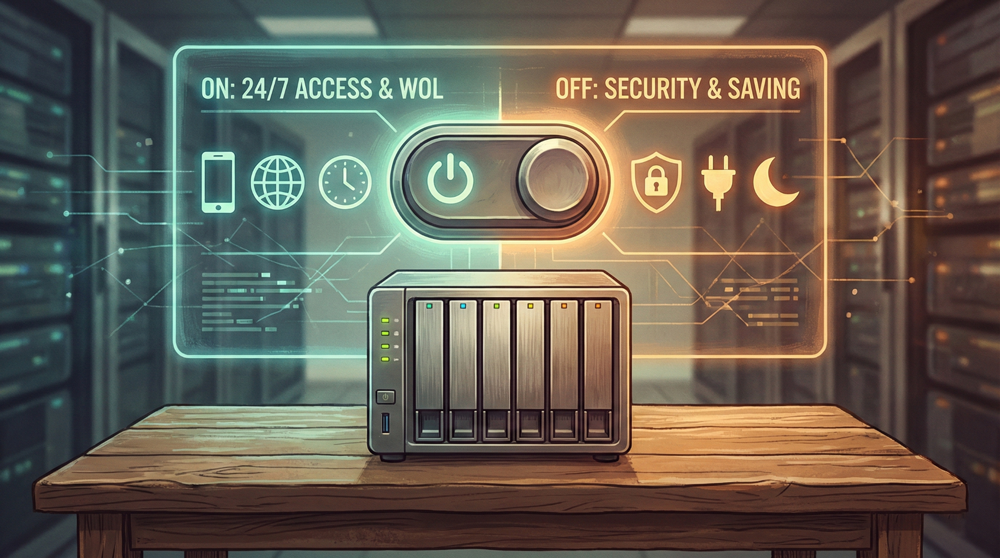
The answer is: it depends on your usage needs. Modern NAS devices are highly optimized in both hardware and software design with efficient power management. Even when left running continuously, the system operate efficiently without significant energy waste. Frequent power cycling also does not affect the NAS’s hardware lifespan, so there’s no reason to fear that the system might be damaged, as long as shutdowns are performed correctly.
So, when would you actually need to shut down your NAS? The following situations are among the most common:
1. For Security
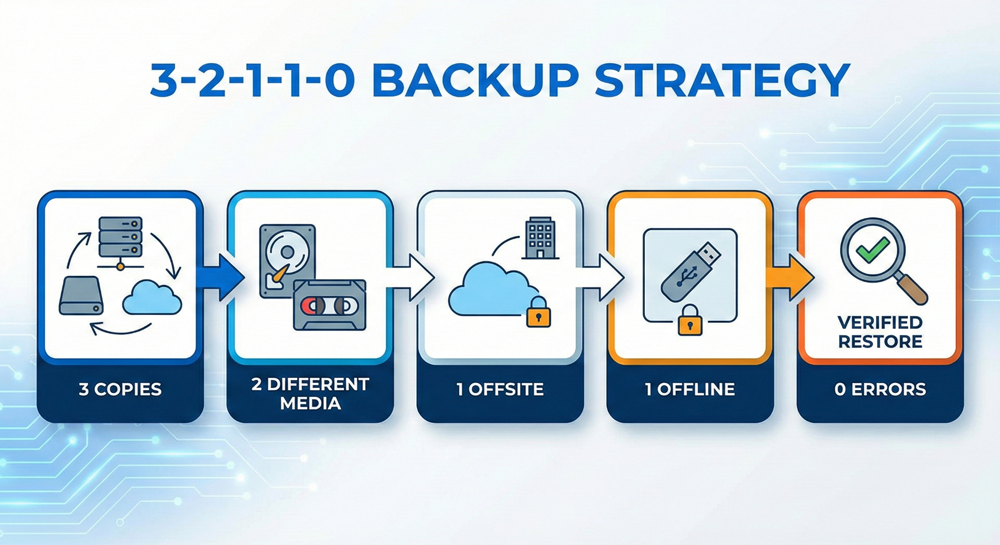
In the industry’s widely recommended 3-2-1-1-0 backup strategy, an offline backup disconnected from the network is a crucial component, ensuring the data remains inaccessible to external threats, much like the doomsday seed vault in the Arctic.
To disconnect a NAS from the network, you can either configure it through your networking equipment or use a combination of a QNAP Qhora Router and the NAS to schedule periodic network on/off cycles, effectively isolating the NAS from the network. Besides that, there is actually an even simpler method: shut down the NAS and don’t leave it on when it’s not in use, to prevent it from being accessed by malicious actors.
2. Preventing Power Outages
A NAS is not necessarily placed in a continuously powered data center, and in some companies, the main power is turned off after working hours. In such cases, the NAS may shut down improperly, which could potentially damage the data.
Therefore, shutting down the NAS before a power outage is actually a safer approach, as at least the shutdown process is carried out properly.
3. Maximum Energy Saving
A typical desktop NAS is very power-efficient; in standby mode, its power consumption may be less than 10 watts. However, some users believe that zero watts is always better than ten watts—if a device is not in use, it should not consume any power. This is, in fact, a reasonable point.
A more common scenario is that some NAS enthusiasts place their devices in the bedroom. Late at night, when it’s quiet, the operating indicator lights or the faint sound of hard drives spinning may be disturbing. In such cases, simply shutting it down is the effective solution to resolve the issue once and for all.
If the operator is beside the NAS, using the physical power button to turn it on or off is the most straightforward approach. But what if the NAS is unattended? As long as you can connect to the NAS, performing a remote shutdown is not a problem.
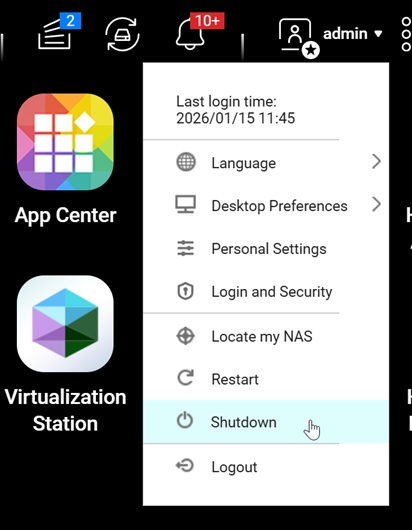
In the QTS interface, restart and shutdown options are available. As long as the logged-in account has administrator privileges, simply clicking the shutdown option will achieve the desired result.
Scheduling a shutdown is also very simple. In “Control Panel” → “System” → “Power” → “Power Schedule”, you can configure detailed settings with minute-level precision and set them to run daily.
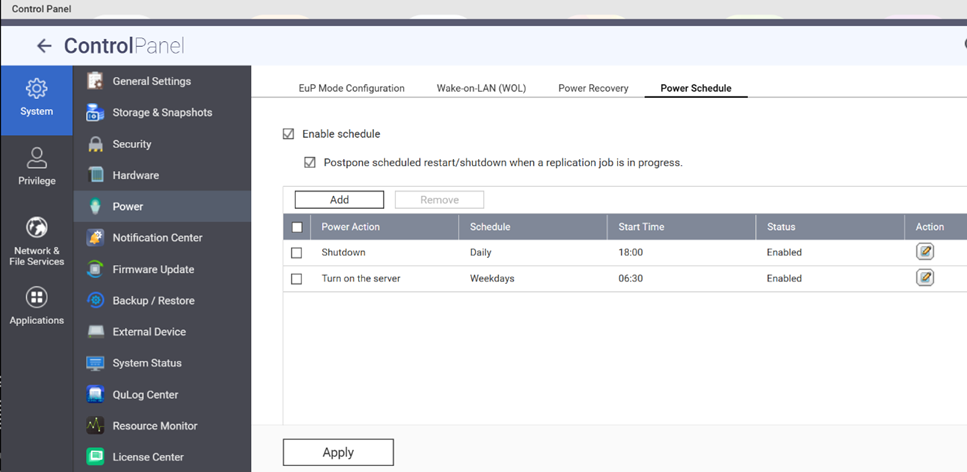
Shutting down through these default shutdown methods is generally safer. This is because they either provide a confirmation prompt or tens of seconds of a grace period, rather than taking effect immediately like pressing a physical power button. This type of shutdown not only does not damage the hard drives, but also poses no issues at the file system level, because before shutting down, the system automatically writes back any data residing in memory that needs to be saved to disk, thereby maintaining file system integrity.
However, caution is needed at the application level. For example, if a file is being downloaded, the shutdown signal will be sent without waiting for the download to complete. The way a NAS handles shutdown is not very different from a computer.
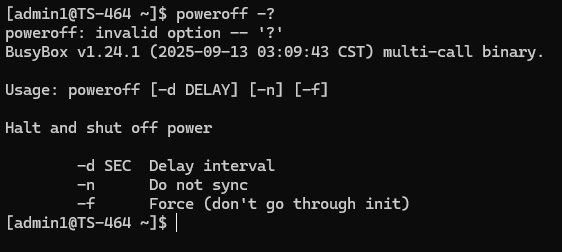
For users who prefer using the command line or writing scripts, the NAS can be shut down using commands such as shutdown or poweroff. Using scripts allows for more flexible applications—for example, when the computer is shut down, a script can simultaneously send a shutdown command to the NAS via SSH, eliminating the need to manually turn off both devices.
The reason remote shutdown is simpler than remote power-on is that when the NAS is running, we can perform many complex operations, whereas when it is powered off, there is little that can be done until it is turned on. Therefore, if you plan to place a NAS in an unattended location and still need to shut it down, you should first consider how to turn it back on.
The scheduled power-on method has already been introduced in the previous section. In the same settings interface, there is also a “Power Recovery” option. Similar to settings found on most computer motherboards, this feature determines how the NAS responds when power is restored after an outage.
Here, a power outage refers to an unexpected loss of power that results in an improper shutdown of the NAS, such as a blackout or the power cable being unplugged. Any shutdown that does not follow the proper procedure described in the previous section can be classified as a power outage.
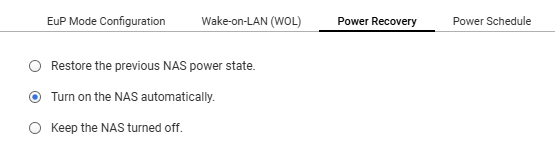
Conversely, for a NAS that has been shut down properly, these options will only take effect if it experiences a power outage and subsequent restoration while turned off. In this case, unless you use a smart plug to remotely cut and restore power, the only way to turn on the NAS remotely is through Wake-on-LAN (WOL).
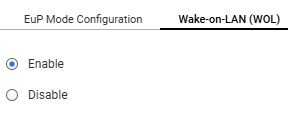
WOL, short for Wake-on-LAN, works by sending low-level network packets to the network card, which then wakes up the computer. It has long been a standard method for remotely powering on devices in the networking world. However, it comes with several common limitations:
1. Cannot Wake via the NAS’s Wireless Network Interface
WOL works because the NAS’s wired Ethernet card remains powered even when the device is shut down, allowing it to receive packets and perform subsequent operations. Most wireless network cards are not powered when the device is off and do not support wake functionality, making it difficult to wake the NAS over Wi-Fi.
It should be noted that the wireless network referred to here is how the NAS itself connect to the network. In most cases, a NAS is still connected to the LAN via a wired connection, while a mobile device may connect via Wi-Fi and still successful send a WOL signal. However, waking it up via WOL would be extremely difficult if the NAS connects to the LAN via a wireless network card.
2. WOL Requires Some Configuration
WOL works primarily by sending packets to the MAC address of the network card. Therefore, to wake a NAS on a LAN from the WAN, the router needs to be configured for the corresponding port forwarding. This operation depends on the router’s configuration management capabilities, so some entry-level models may not fully support the required features, which may result in failed wake-up attempts.
Setting aside environmental limitations, there are numerous third-party tools and apps that can wake devices via WOL. Qfinder Pro itself comes with built-in WOL functionality for QNAP NAS, allowing you to perform this task on a computer or a mobile device without issuing command-line instructions.
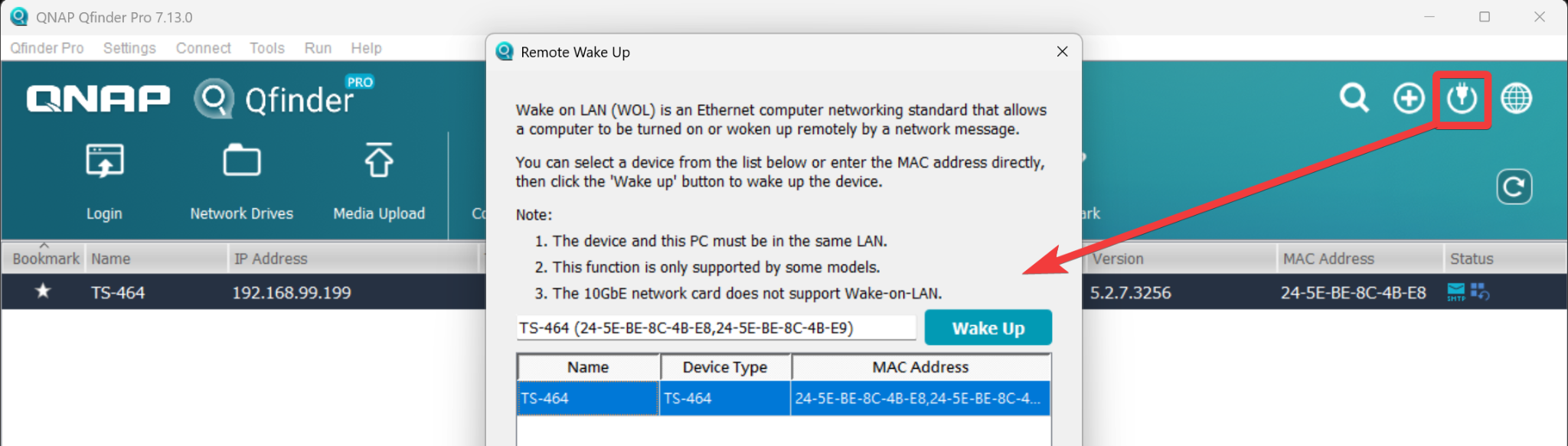
Similarly, there are also command-line tools available for Wake-on-LAN, making it convenient for power users to write scripts for integration. For example, a NAS can be automatically woken up when a computer powers on, and as long as both devices are on the same LAN, this can be done easily. Windows PowerShell can directly install a module to enable this functionality:
Install
Install-Module -Name WakeOnLan -Scope CurrentUser
Basic usage
Invoke-WakeOnLan -MacAddress “00-11-22-33-44-55”
In fact, when facing increasingly rampant ransomware and automated attacks, being offline is often the strongest form of physical defense. Using scheduled power on/off to reduce the time a device is exposed to the network is a cost-effective approach that reduces both hardware and technical costs. “The safest server is an offline server, and the most energy-efficient hardware is hardware that is turned off”. By flexibly leveraging these software and hardware features described above according to actual needs, one can find the optimal balance between cybersecurity, power consumption, and accessibility—without being bound by the outdated notion that “a NAS must run 24/7”.
