Categories
Blog posts about QNAP's products and technologies.
Whether you are sending a contract to a client or sharing holiday photos with family, sharing a folder through a link is one of the features QNAP NAS users rely on most. Yet many people quietly wonder the same thing: “Is it actually safe to just open a share link?”
It is a great question. The truth is that how safe a link is rarely comes down to the link itself — it comes down to how you set it up. This article walks you through what happens behind a share link, the one security pitfall to avoid, and the two genuinely safe ways to share.
When you create a share link in File Station, your NAS uses the myQNAPcloud service to work out the best way to connect whoever opens the link. It tries, in order:
In other words, a share link is a doorway to a file on your NAS. Whether that doorway is safe depends on the locks you put on it.
To make sharing “just work,” some users manually set up port forwarding on their router and open the NAS straight to the internet. This is the riskiest approach.
The core issue: the moment your NAS is directly reachable from the public internet, it can be found by automated scanners and becomes a target for password brute-forcing, known exploits and even ransomware — whether or not you are actively sharing anything.
There is also a subtler risk that applies to any link: a link with no password and no end date can be forwarded, posted, or discovered long after you meant it to expire. The link cannot tell who is on the other end — so that job belongs to the settings you choose.
| [Scenario: sending a contract to a client at the last minute] Amy runs a small design studio and needs to send a large contract file to a client right away. She doesn’t want to change router settings just for this, and she certainly doesn’t want to leave her company NAS exposed on the internet. |
The simplest safe option keeps your files on your NAS and lets myQNAPcloud handle the connection for you — including the relay — so you never have to open ports or expose your NAS directly to the internet. When you create the link, add two locks every time:
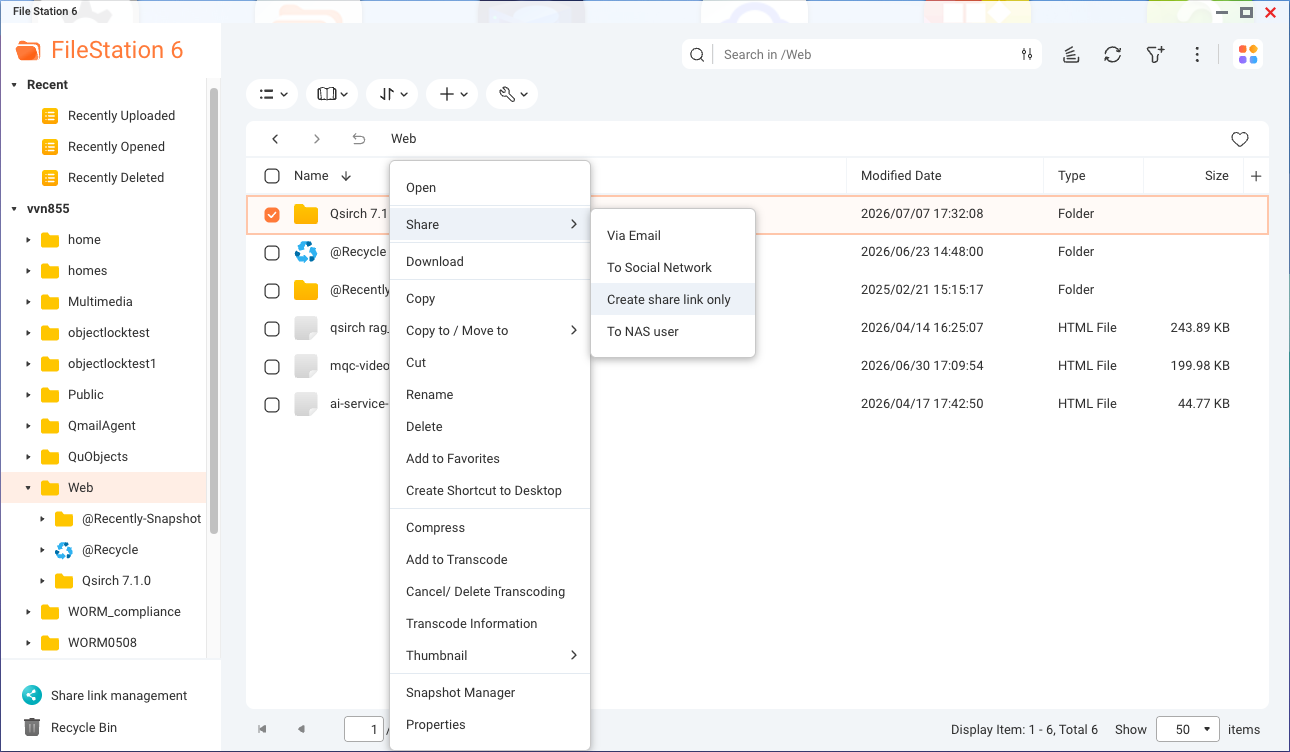
Figure 1: In File Station, right-click the folder → Share → Create share link only
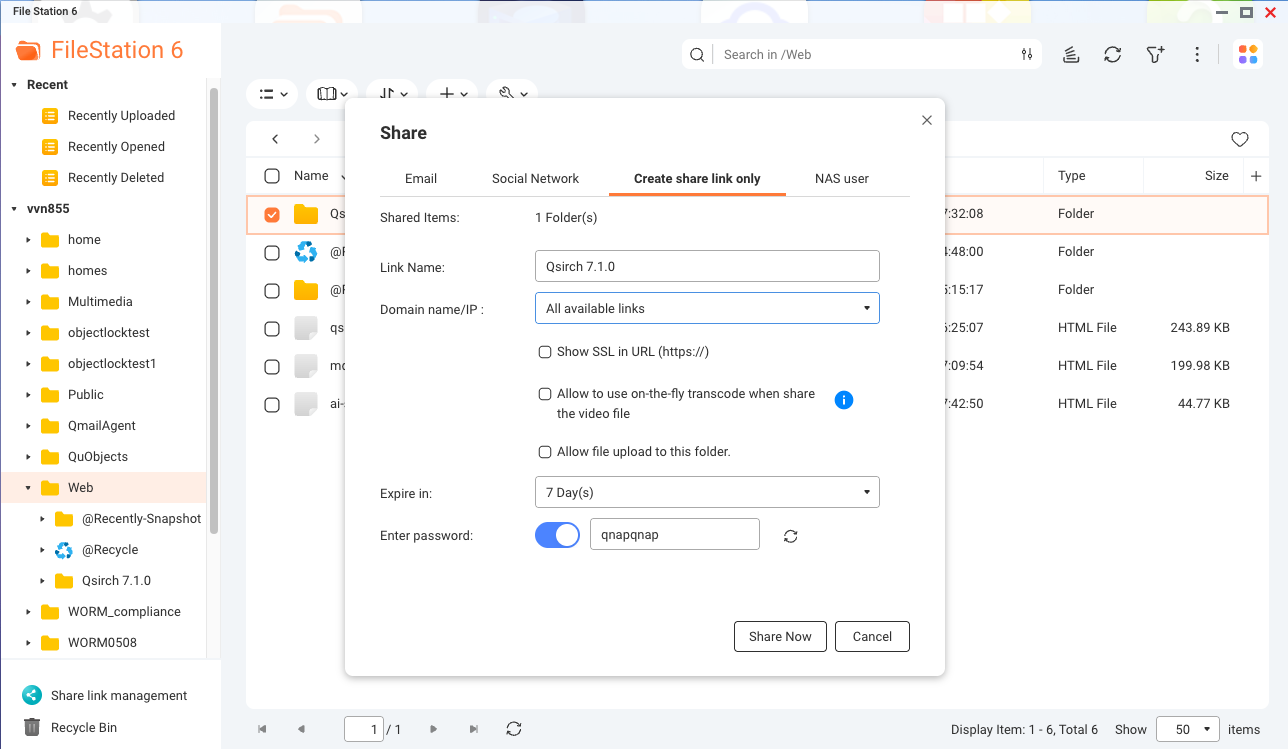
Figure 2: In the Create share link only window, set the link name, expiry (Expire in) and password (Enter password)
Best for: quick, occasional sharing of files that live on your NAS. A quick note: the free myQNAPcloud relay has a bandwidth limit, so it’s best for modest transfers rather than pushing very large files to many people.
Further reading: Creating Share Links on File Station (official tutorial)
| [Scenario: delivering large volumes of files regularly] Alex is a freelance photographer who delivers large batches of finished work to different clients every week. He wants sharing to be fast and reliable — without client download traffic hitting his own NAS. |
For the highest level of separation, share from the cloud rather than from your NAS. With a myQNAPcloud cloud storage subscription, a copy of the file lives in QNAP’s cloud, and the people you share with download it from there. They never connect to your NAS at all — your device stays completely out of the picture.
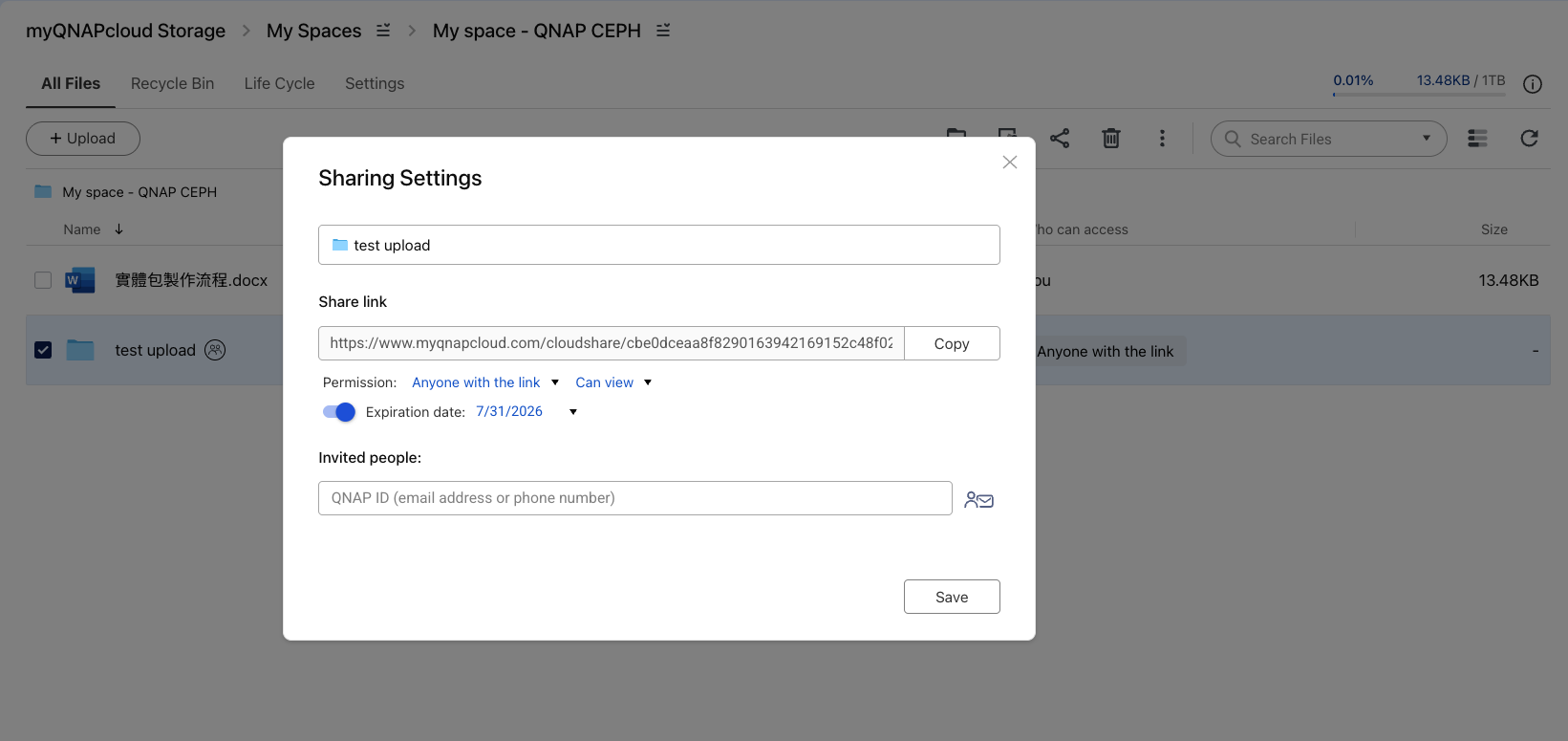
Figure 3: In myQNAPcloud Storage Sharing Settings, set the access permission and expiration date, and invite specific QNAP IDs
Best for: sharing with people outside your household or company, sharing often or in large volumes, or simply keeping your NAS private. Password and expiry controls apply here too.
About pricing: myQNAPcloud Storage includes 16 GB of free space, but the sharing feature requires a paid plan (a paid myQNAPcloud Storage plan or myQNAPcloud One).
Learn more & see pricing: myQNAPcloud Storage | myQNAPcloud One
| Approach | How it works | Best for | Good to know |
| Expose the NAS directly (port forwarding) | Opens your NAS to the public internet | Not recommended | Largest attack surface — avoid |
| myQNAPcloud Link + password + expiry | Files stay on your NAS; QNAP handles the connection/relay; visitor never needs your NAS address | Quick, occasional sharing | Free; relay speed is limited for big transfers |
| myQNAPcloud cloud storage sharing | A copy lives in the cloud; recipients download from the cloud, not your NAS | External or frequent sharing; keeping your NAS private | Requires a paid myQNAPcloud plan |
A share link can be perfectly safe — the difference is in the details. First, don’t expose your NAS directly to the internet. For everyday sharing, use a myQNAPcloud Link with a password and an expiry date. And when privacy matters most, share from myQNAPcloud cloud storage so your NAS never enters the conversation. Match the method to how sensitive the files are and who you’re sharing with, and you get convenience and peace of mind at the same time.
