Categories

Blog posts about QNAP's products and technologies.
Is your NAS account secure? From fingerprint recognition and security keys to QR code scanning, modern authentication technologies make login both secure and convenient

An IT Administrator’s Daily Nightmare
3 a.m., phone buzzing.
“Hello Administrator, I forgot my NAS password. Can you help me reset it?”
This is the fourth time this week. And you know, this colleague’s password is probably something like “Company2024!”—because last time they reset it, they typed it right in front of you.
This is not an isolated case. According to Verizon’s 2024 Data Breach Investigations Report, over 80% of breaches are related to passwords—whether due to weak passwords, reused passwords, or credentials stolen through phishing. As the central data storage hub for both enterprises and home users, a compromised NAS account can lead to severe consequences.
The problem has never been that “users refuse to set secure passwords”—the issue is that passwords themselves are inherently flawed.
The good news is that we no longer have to struggle with passwords.

Generation 1: Password-Only Login — Simple, Yet Fraught with Risk
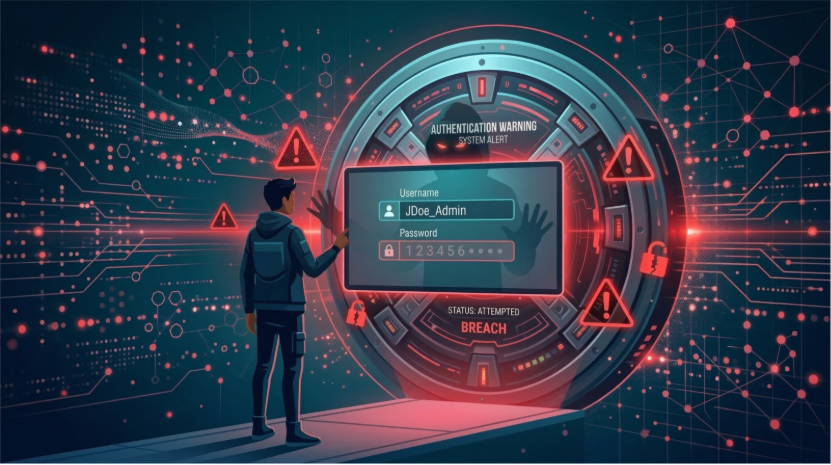
▲ Weak passwords are the line of defense hackers can most easily breach—one successfully guessed password can leave your NAS wide open
In the world of NAS, the most basic form of authentication is simply a username-and-password combination. It’s simple, intuitive, and everyone knows how to use it.
But precisely because it’s simple, its problems are nearly unsolvable:
| Attack Methods | Description |
| Brute Force | Automated tools attempt thousands of password combinations per second |
| Dictionary Attack | Attempting passwords one by one from lists of commonly used credentials. |
| Credential Stuffing | Using leaked account credentials from other websites to attempt unauthorized access. |
| Phishing | Tricking users into entering credentials on fake login pages |
You might ask, “Can’t I just set a highly complex password?”
The problem is—can you actually remember a password like “X7#mK9$pL2@nQ”? If you can’t remember it, you’ll end up writing it on a sticky note and sticking it on your monitor. How is that any different from having no password at all?
The fundamental paradox of passwords: the more secure a password is, the harder it is to remember; the easier it is to remember, the less secure it becomes.

Generation 2: Two-Factor Authentication (2FA) — An Extra Lock for Extra Peace of Mind
If a password is “something you know”, can we also add “something you have”?
This is the core idea behind Two-Factor Authentication. In addition to your password, a second verification is required via your phone. Even if your password is stolen, without your phone, hackers cannot access your account.
QNAP Authenticator: Your Personal Authenticator
QNAP has developed the dedicated QNAP Authenticator mobile app, offering four authentication methods so you can choose based on your usage scenarios:
1. Time-Based One-Time Password (TOTP)—An Offline Gatekeeper
Every 30 seconds, a new six-digit verification code is automatically generated using a time-based algorithm and works without a network connection. This is the most basic and reliable method—even if there is no network connection between your NAS and phone, as long as the time is synchronized, authentication will work.

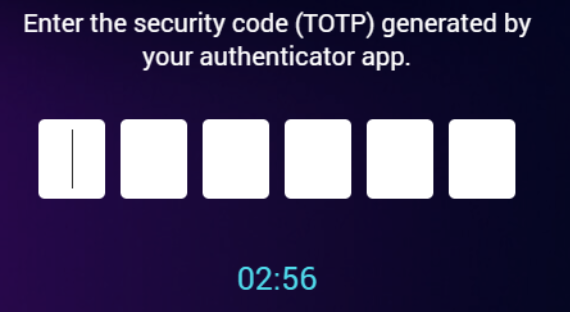
▲ QTS Login Screen: Enter the six-digit security code generated by QNAP Authenticator
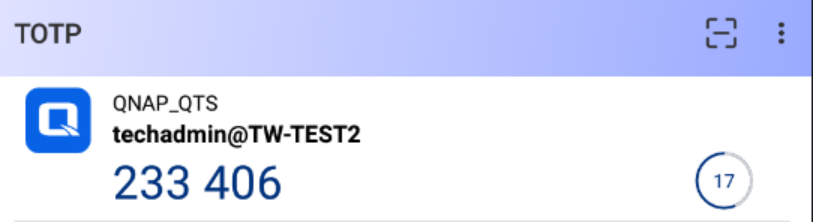
▲ QNAP Authenticator App: a dynamically generated TOTP security code that automatically refreshes every 30 seconds
2. QR Code Scan—Seeing Is Believing
The login screen displays a QR code, which you can scan with QNAP Authenticator to complete authentication. It’s intuitive and fast, making it especially suitable for users who regularly use the same computer.

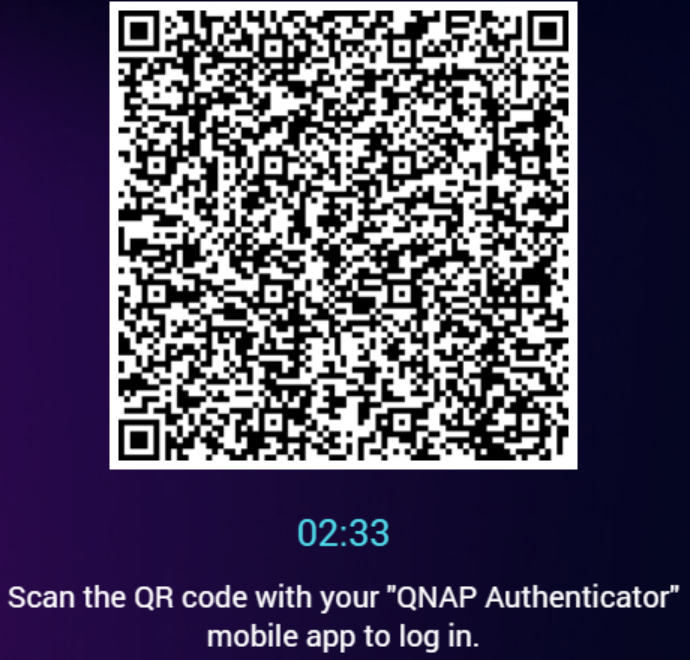
▲ The login screen displays a QR code, which you can scan with QNAP Authenticator to complete the verification
3. Login Approval — One-Tap Authentication
When a login request is initiated on the NAS, your phone receives a push notification. Check the pairing code on the screen, then tap “Approve” to finish. It’s the fastest method, but it requires both your phone and the NAS to maintain an active network connection.
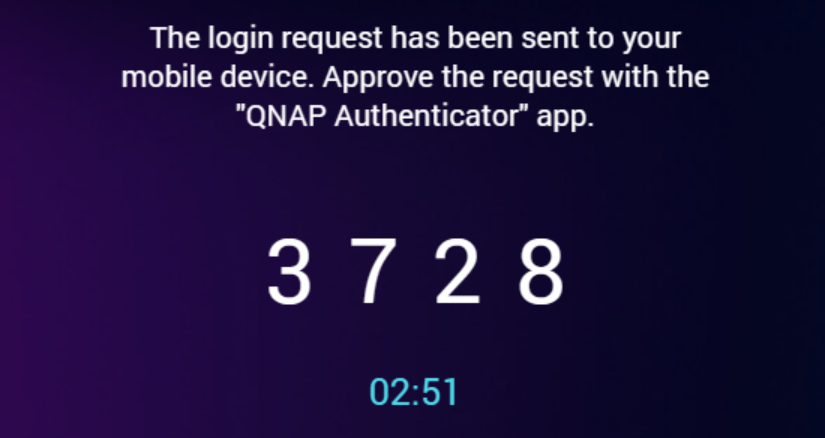
▲ The phone and the NAS each display the pairing code; after confirming they match, tap “Approve” to sign in
4. Online Verification Code—Enter Upon Receipt
The NAS pushes a verification code to QNAP Authenticator over the Internet. You just need to open the app, see the code, and enter it on the login screen.
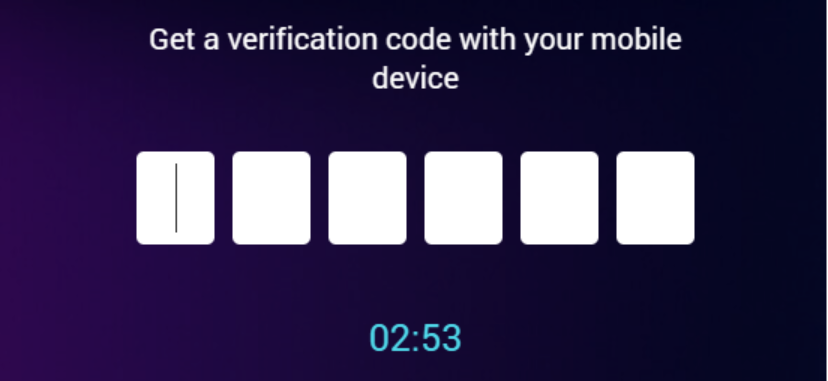
▲ Enter the verification code received from QNAP Authenticator
Initial Setup Is Also Very Simple
When enabling two-factor authentication on the NAS, the system generates a QR code. Scan it with QNAP Authenticator to complete device binding, and the whole process takes less than two minutes.
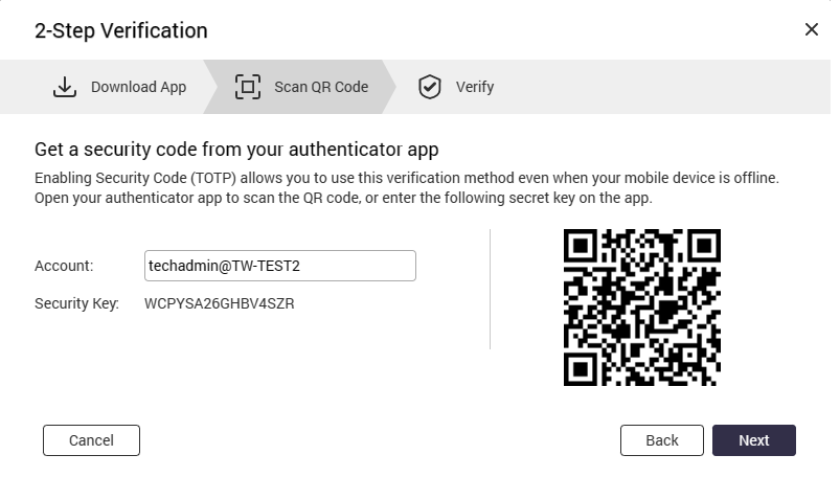
▲ First-Time Setup: Use QNAP Authenticator to scan the NAS generated QR code to complete the account pairing
2FA Limitations
Two-factor authentication greatly enhances security, but it is not perfect:
If the IT administrator who was woken up in the early hours had already deployed 2FA for the company, at least a guessed password wouldn’t immediately compromise the system. But can it be done even better— without requiring a password at all?

Generation 3: FIDO2 and Passkey— Eliminating Password Weaknesses at the Root
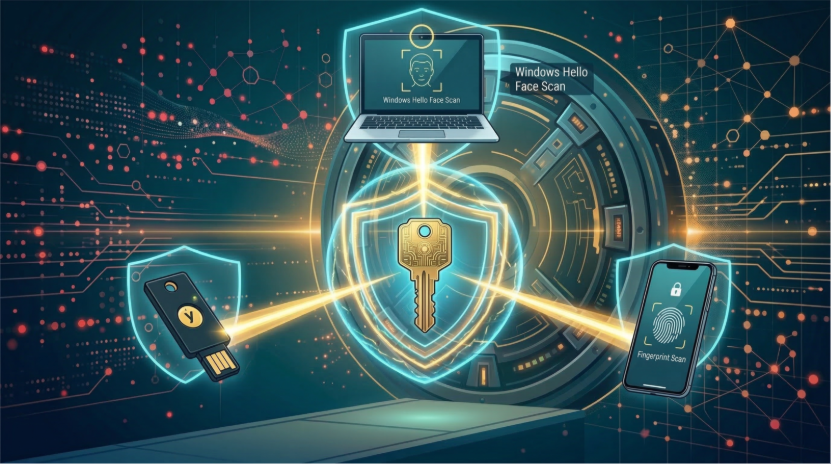
▲ FIDO2 and Passkey support multiple devices: physical security keys (YubiKey), Windows Hello facial recognition, and mobile fingerprint authentication
While previous solutions were essentially patching passwords, FIDO2 represents a completely new approach: it fundamentally eliminates the possibility of credential theft. On the other hand, Passkey (a passwordless authentication credential) is the key application that brings FIDO2 technology to mainstream adoption.
What is FIDO2? How does Passkey differ from FIDO2?
FIDO2 (Fast Identity Online 2) is a technical standard jointly developed by the FIDO Alliance and W3C. It consists of two components: WebAuthn on the browser side and the CTAP protocol for connecting physical devices.
Meanwhile, Passkey is a “digital credential” based on the FIDO2 standard. Depending on how they are stored, their security and convenience also vary:
How It Works
Whether it’s a hardware key or a Passkey, the core logic is based on “asymmetric encryption”:
No passwords are transmitted over the network during this process, and even if a hacker intercepts the communication, they would only get a useless one-time signature.
QNAP NAS’s FIDO2: Two Use Cases, One Standard
QNAP officially introduced FIDO2 support in QuTS hero h6.0.0. Unlike the Authenticator App, FIDO2 is a NAS system-level feature that operates directly through the browser-based WebAuthn API. Before use, the FIDO2 Server needs to be installed from the App Center and accessed over HTTPS using a domain name.
On a QNAP NAS, you can choose between two roles based on your security requirements:
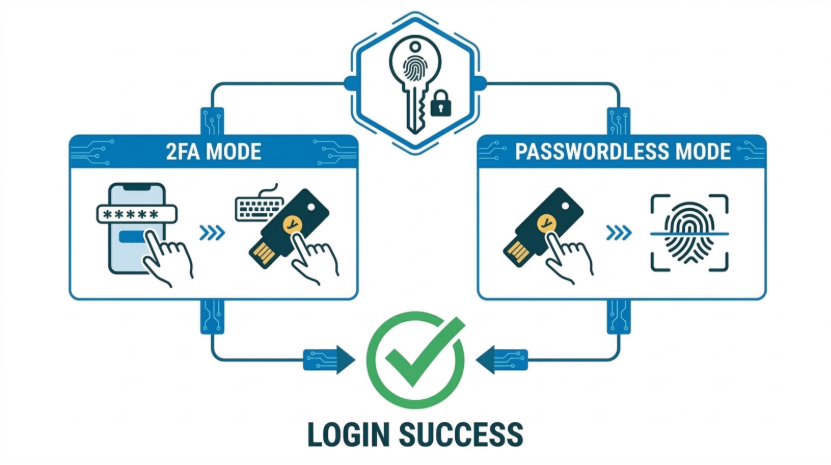
▲ FIDO2 and Passkey — Two use cases: the left shows 2FA mode (password + security key), and the right shows passwordless mode (only a security key / biometrics). Both allow secure login.
Supported FIDO2 Authentication Types: Security vs. Convenience Trade-offs
Not all FIDO2 devices offer the same level of security, and you can pair multiple devices based on your needs:
| Device Type | Storage Method | Security Level | Examples |
| Hardware Security Key | Private key is locked within the hardware chip and cannot be duplicated | Highest (AAA) | YubiKey 5 series, Google Titan |
| Device-Bound Passkey | Stored in the secure chip of a computer or mobile device | Very High (AA) | Windows Hello, Mac Touch ID |
| Synced Passkey | Passkeys are synchronized across devices via cloud services (iCloud/Google) | High (A) | Mobile Face ID / fingerprint with cloud sync |
Security Reminder: While “Synced Passkey” are far more secure than traditional passwords, because the private key is backed up to the cloud, a hacker could access the passkey remotely if your Apple ID or Google account is compromised. For NAS administrators (Admin), it is strongly recommended to use a “Hardware Security Key” to ensure the private key has physical protection against theft.
Why are FIDO2 / Hardware Keys considered the highest level of security?
Prerequisites: QuTS hero h6.0.0 or later, FIDO2 Server installed, and connected via HTTPS + domain name (IP addresses or SmartURL are not supported).

There’s another path: QNAP Authenticator Passwordless Login

▲ Use QNAP Authenticator to scan the on-screen QR code. Your phone will show “Login Approved”, and the login is complete
Not everyone has a YubiKey, and not all NAS systems run QuTS hero h6.0.0. The good news is that QNAP Authenticator itself also offers a simpler passwordless experience—no extra hardware is needed, only a single smartphone is required.
Walk to your computer and open the NAS login page. A QR code appears on the screen. Pick up your phone, open QNAP Authenticator, scan the code, and login is complete. The entire process takes less than five seconds.
| Method | Action | Features |
| QR Code Scan | Scan the QR code on the screen with your phone | Visual confirmation — scan and log in instantly |
| One-Tap Approval | Receive a push notification on your phone and tap Approve to authenticate. | Fastest method, ideal for frequently used devices |
You might be worried: “Isn’t it less secure without a password?” Actually, it’s quite the opposite. Your phone itself serves as a powerful authentication factor: it requires biometric verification or a PIN to unlock, QNAP Authenticator is bound to your NAS account, and the authentication process occurs over an encrypted channel with time constraints. Compared to a password that could be guessed, observed, or phished, a phone in your pocket is clearly a far more reliable “credential.”
Prerequisites: QTS 5.1.0 / QuTS hero h5.1.0 or later, QNAP Authenticator must be installed on your phone (iOS 15+ / Android 7+) The phone and NAS must maintain an active network connection.
FIDO2 / Passkey vs. Authenticator Passwordless: How to Choose?
| Feature | FIDO2 Hardware Key / Passkey | QNAP Authenticator Passwordless |
| Technical Standard | International standard (FIDO2 / WebAuthn) | QNAP proprietary encryption solution |
| Phishing Resistance | Strongest (domain-bound mandatory verification) | Basic (relies on encrypted channel and time constraints) |
| Private Key Risk | Hardware keys cannot be compromised; Passkey carries a cloud sync risk | Depends on the security of the phone app |
| Available Offline | Yes (hardware key / on-device biometric) | No (authentication requires network connection) |
| Installation Requirement | FIDO2 Server + HTTPS with a domain name | QNAP Authenticator App |
| Suitable For | IT administrators, high-security users | General home users, those seeking maximum convenience |

Which Option Should You Choose? (Security-Focused Recommendation)
IT Administrators / High-Security Users
Recommendation: Use a hardware security key (FIDO2) for either 2FA or passwordless authentication
Administrator accounts are primary targets for hackers. Using a hardware key like YubiKey ensures that your private keys remain non-extractable, even if your cloud account is breached. This provides a “military-grade” level of defense in NAS security.
Enterprise Users
Recommendation: QNAP Authenticator two-factor authentication (for TOTP or login approval) or device-based Passkey (Windows Hello / Mac Touch ID)
This approach provides a balances between security and convenience. TOTP works offline, making it suitable for environments with unstable network connections, while login approval is more intuitive and ideal for office settings.
Home Users
Recommendation: QNAP Authenticator passwordless authentication (QR code scan or one-tap approval)
Home is for relaxing. Just scan a QR code or tap your phone, and login is done in five seconds. No passwords to remember, no risk of forgetting them, and stronger security than password-only authentication.

Starting today, upgrade your NAS authentication
Think back to the IT administrator who was woken up at 3 a.m. If their company had already deployed a passwordless solution, there would be no more “forgotten password” incidents.
QNAP Authenticator frees users from remembering passwords; Two-Factor Authentication adds a second layer of protection when passwords are required; FIDO2 and Passkey fundamentally eliminate the risk of password theft.
This isn’t a matter of choosing one over the others—it’s a comprehensive security strategy that can be flexibly deployed based on your needs. And QNAP has all these tools ready for you.
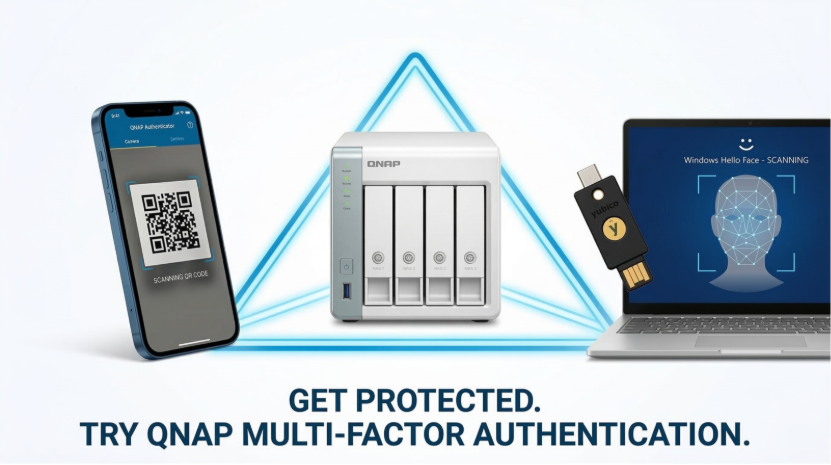
▲ QNAP provides a complete authentication toolbox: QNAP Authenticator App, FIDO2 Security Keys, Windows Hello—providing comprehensive protection for your NAS
Take Action Now
Use QNAP Authenticator (2FA / Passwordless Login):
Enable FIDO2 / Passkey (Recommended and Essential for Administrators):
Note: The two-factor authentication and passwordless login features of QNAP Authenticator cannot be enabled simultaneously—choose one based on your needs. FIDO2 and Passkey are independent, system-level NAS functions that can be enabled with either two-factor authentication or passwordless login, and are not limited by QNAP Authenticator settings.

Your data deserves better protection. And the first step in safeguarding is to upgrade your login method.

This article applies to QTS 5.1.0 or later / QuTS hero h5.1.0 or later. FIDO2/Passkey features require QuTS hero h6.0.0 or later and the installation of FIDO2 Server.
