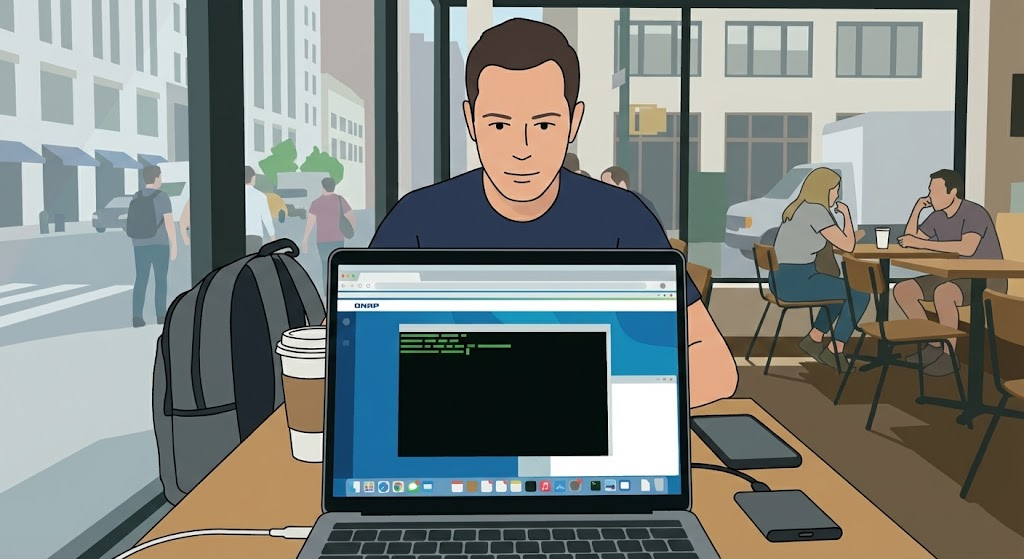
As a digital nomad engineer—or the “babysitter” of hundreds of company computers—connecting back to a server from various client devices for configuration is a routine task. Some engineers carry their own laptop preloaded with frequently used software and tools to avoid being restricted when using colleagues’ or shared computers.
However, connecting back to a QNAP NAS is much easier. Since the NAS uses a browser-basedGUI for management by default, any computer or mobile device capable of running a web browser can access the NAS to perform remote operations.
The Terminal: Where Engineers Find Their Romance
What if you need to access the command line or terminal mode? Windows, macOS, and Linux operating systems typically include a native built-in SSH client, so it is usually not much of a problem.
However, initiating an SSH connection on an unfamiliar computer still comes with several inherent inconveniences, such as:
1. Older Operating Systems and Mobile Devices Are Not Supported
Older operating system versions, particularly released before 2018, as well as Android and iOS devices require third-party applications to act as SSH clients. In many security-sensitive environments or factories, older operating systems are still in use.
2. Security
SSH connections themselves are secure. However, credentials entered before the connection is established may still be subject to local monitoring or keylogging. The graphical management interface of the QNAP NAS provides two-factor authentication at login, whereas SSH does not include this feature by default.
Furthermore, when accessing the NAS from an external network, it may not be possible to connect through the corresponding port. For example, if the NAS only exposes the QTS web interface externally on port 8080, SSH connections will not be able to pass through.
3. Session Persistence
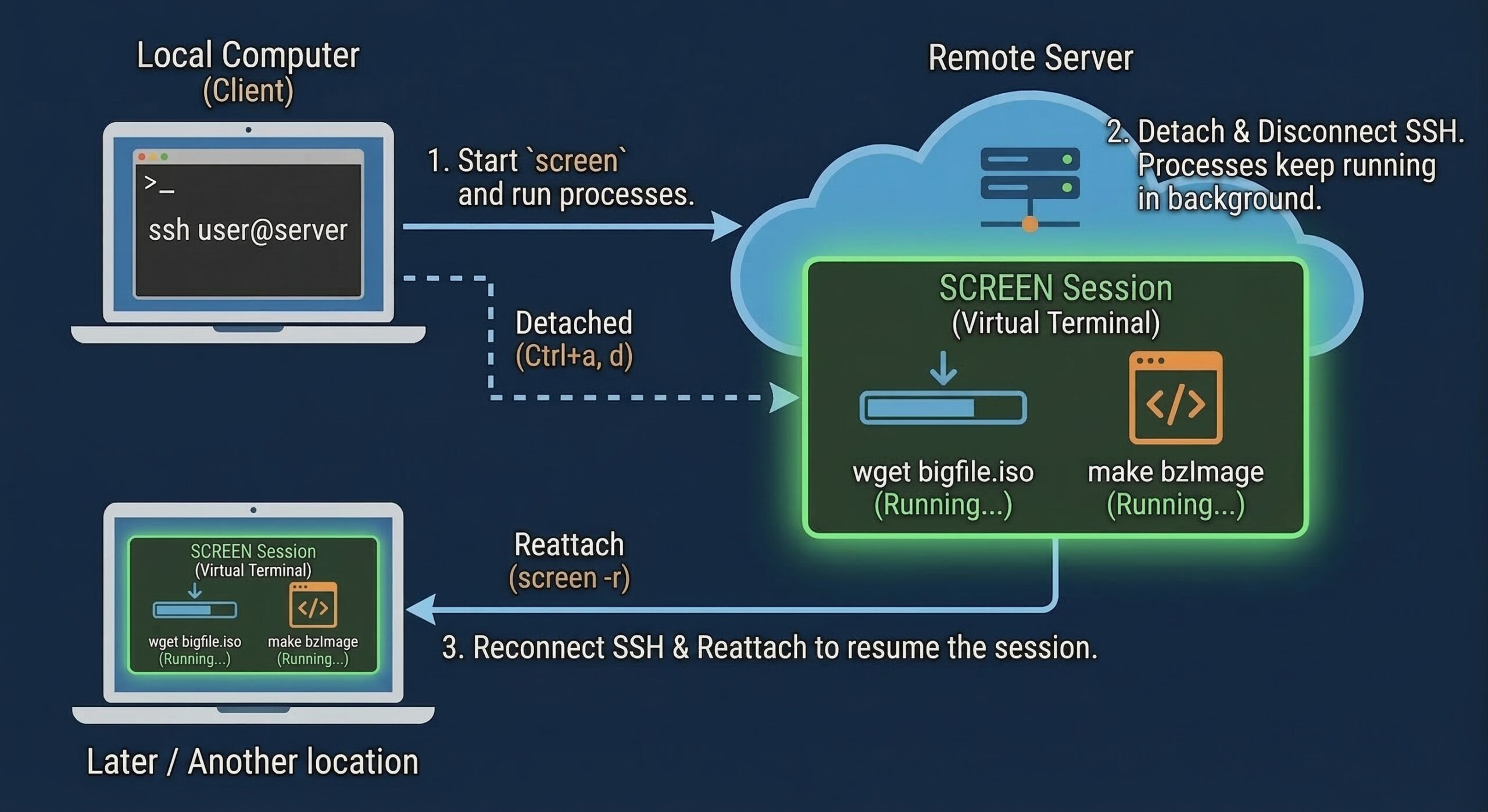
By default, tasks executed on a server via an SSH connection will terminate once the connection is lost. If the task involves downloading large files or performing time-consuming processing, it is impractical to remain at the client computer indefinitely or keep the session open on a public computer.
How can the above issues be resolved? Our objectives are as follows:
1. Access terminal mode through a web browser
2. The session continues running regardless of client disconnections.
First, Ensure the Task Is Not Interrupted
Maintaining the session is relatively easy to address. QTS itself does not have session-related issues—the key lies in the terminal interface. This can be achieved using terminal multiplexing tools such as screen or third-party tools like Tmux. The terminal mode on QNAP NAS does not remove screen, making it the simplest and most convenient way to maintain the session.
Using screen is very straightforward. Simply type “screen” in the terminal to create a new session. The command prompt will not change—for example, if it was originally [user1@TS-464 ~]$, the shell inside the screen session will appear exactly the same.
At this point, even if the session created with screen is still running, it will not be affected if the SSH connection is lost.
The next time you establish an SSH connection, simply use “screen -r” to reattach to the existing session. Screen allows you to create multiple sessions. Use “screen -list” to view the sessions’ pIDs, and then use -r pID to reattach to the corresponding session.
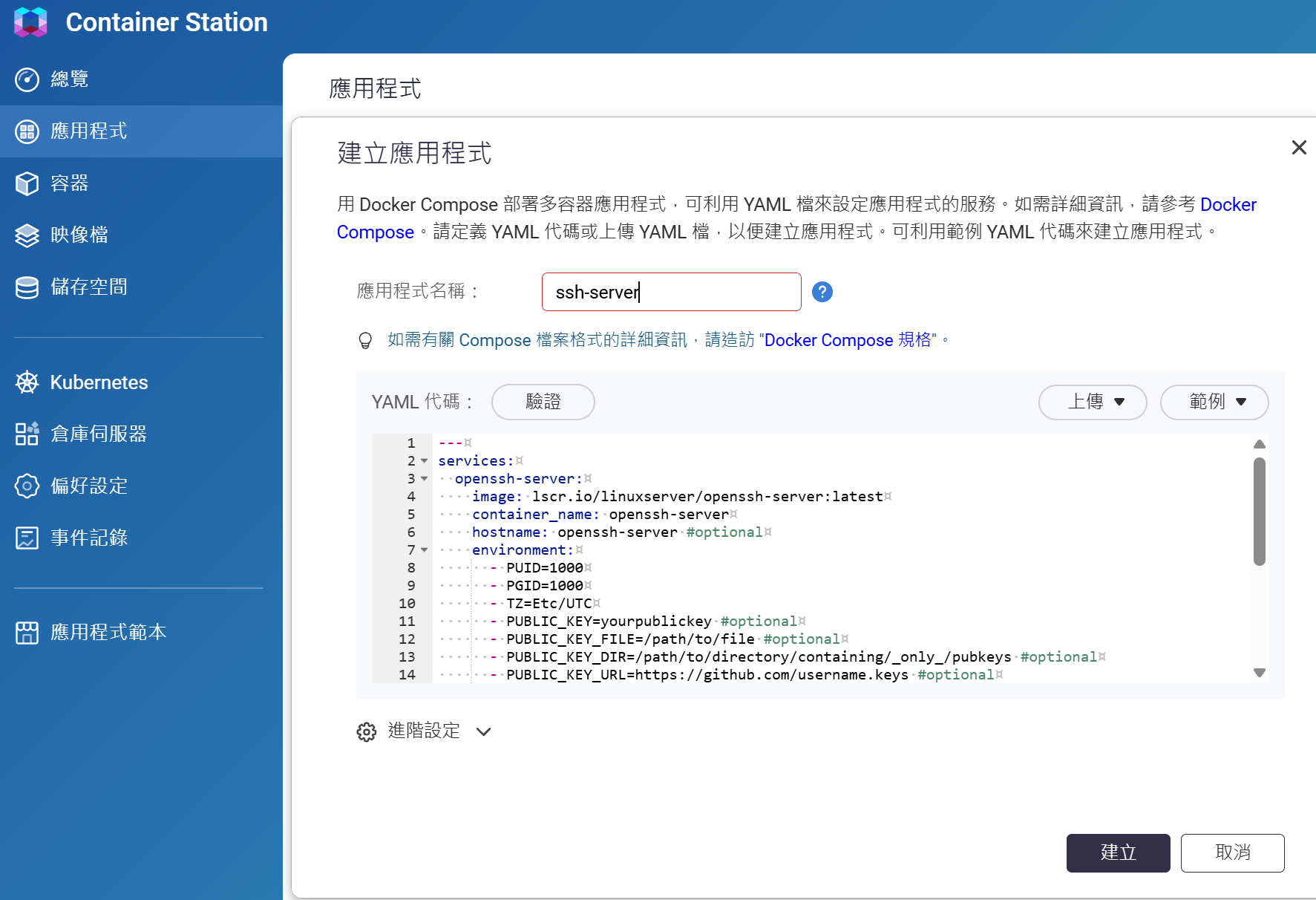
The next step is to address the second issue: accessing the QNAP NAS terminal mode via a web browser. QTS does not provide this functionality natively. The simplest approach is to run a Docker application through Container Station with ssh-client functionality. You can then open the container’s terminal interface directly from the QTS web interface.
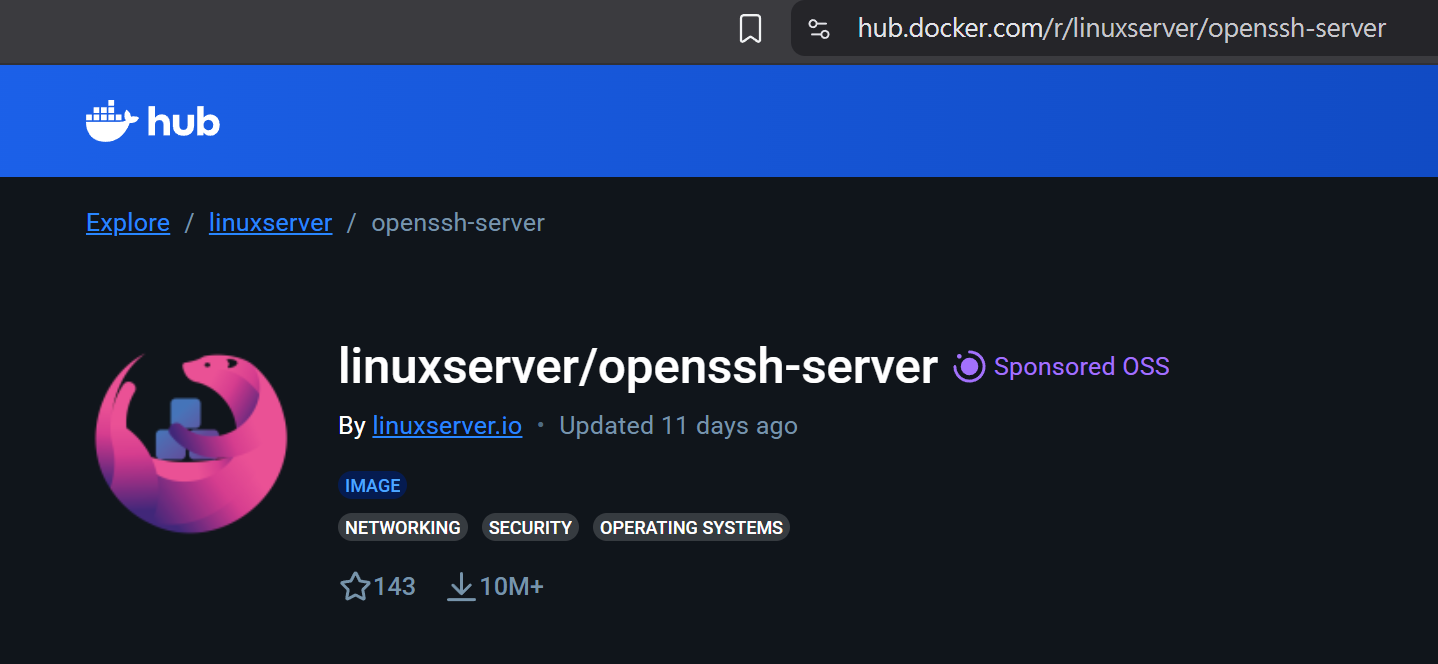
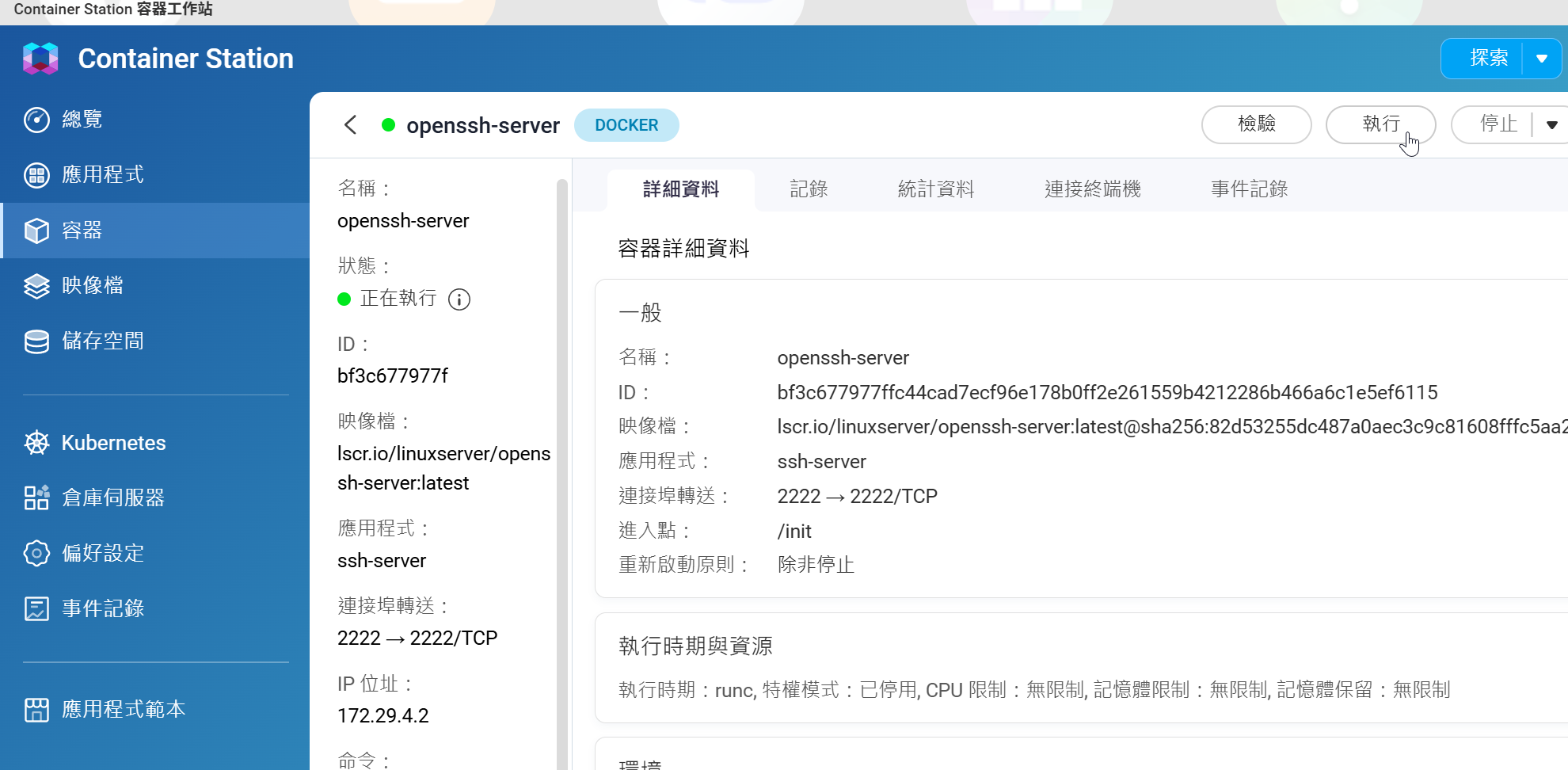
The fastest way to create a Docker application is to use an existing Docker image. Although what we need is an ssh-client rather than an ssh-server service, we can directly install the openssh-server available on Docker Hub, as it also includes client functionality. The official page provides a YAML configuration file, making deployment more convenient.
Official YAML Example for Reference:services:
openssh-server:
image: lscr.io/linuxserver/openssh-server:latest
container_name: openssh-server
hostname: openssh-server #optional
environment:
– PUID=1000
– PGID=1000
– TZ=Etc/UTC
– PUBLIC_KEY=yourpublickey #optional
– PUBLIC_KEY_FILE=/path/to/file #optional
– PUBLIC_KEY_DIR=/path/to/directory/containing/only/pubkeys #optional
– PUBLIC_KEY_URL=https://github.com/username.keys #optional
– SUDO_ACCESS=false #optional
– PASSWORD_ACCESS=false #optional
– USER_PASSWORD=password #optional
– USER_PASSWORD_FILE=/path/to/file #optional
– USER_NAME=linuxserver.io #optional
– LOG_STDOUT= #optional
volumes:
– /path/to/openssh-server/config:/config
ports:
– 2222:2222
restart: unless-stopped
Once created, click “Run” in the Container Station interface:
The terminal interface can then be used to SSH into the NAS host system:
Enable Two-factor authentication for Added Security
If there are no firewall restrictions, the container can be accessed directly via its URL. However, as emphasized at the beginning of this article, security should always be taken into account. Launching Container Station through the QTS web interface is therefore a safer approach.
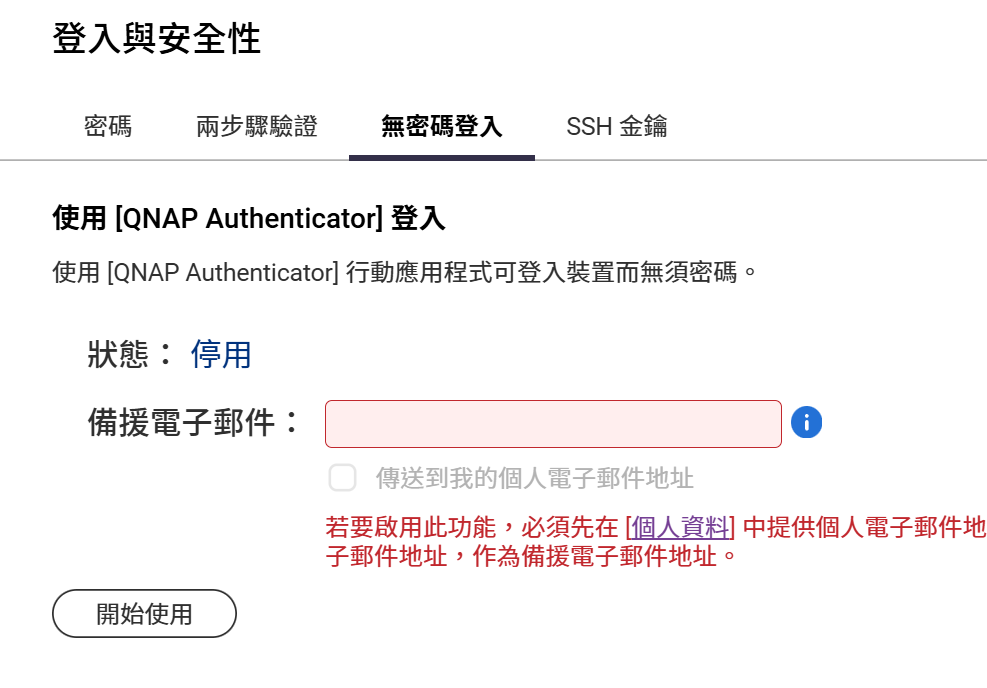
So, how can passwords be protected from keyloggers? Extra caution is always necessary when using an unfamiliar computer. Aside from enabling an on-screen keyboard and entering credentials with a mouse, there is currently no effective way to prevent credentials from being captured by keyloggers. The practical countermeasures are to enable two-factor authentication and change passwords regularly.
QTS provides two-factor authentication and authenticator–based authentication to enhance login security. However, SSH key authentication is not applicable in this scenario.
This browser-based gateway built via Container Station, combined with Screen’s session persistence, demonstrates that security, convenience, and continuity can be effectively balanced. With this combined setup, there is no longer any need to rely on specific client software, nor to worry about losing progress due to network disconnections. The next time you are on call and need to respond to an incident, even without your usual laptop, you can remain productive—as long as you have access to a web browser.
AI Disclosure: Some images and text in this article were created or refined with the assistance of Artificial Intelligence (AI) and reviewed by human editors.
To provide the best experiences, we use technologies like cookies to store and/or access device information. Consenting to these technologies will allow us to process data such as browsing behavior or unique IDs on this site. Not consenting or withdrawing consent, may adversely affect certain features and functions.
Functional
Always active
The technical storage or access is strictly necessary for the legitimate purpose of enabling the use of a specific service explicitly requested by the subscriber or user, or for the sole purpose of carrying out the transmission of a communication over an electronic communications network.
Preferences
The technical storage or access is necessary for the legitimate purpose of storing preferences that are not requested by the subscriber or user.
Statistics
The technical storage or access that is used exclusively for statistical purposes.The technical storage or access that is used exclusively for anonymous statistical purposes. Without a subpoena, voluntary compliance on the part of your Internet Service Provider, or additional records from a third party, information stored or retrieved for this purpose alone cannot usually be used to identify you.
Marketing
The technical storage or access is required to create user profiles to send advertising, or to track the user on a website or across several websites for similar marketing purposes.