Categories
Blog posts about QNAP's products and technologies.
Recently, an AI lobster that emerged on social platform X has sparked heated discussions across the global developer community. It was even rumored to be responsible for the shortage of Apple’s M4 Mac mini, which in turn led to second-hand M2 Mac minis selling out on online marketplaces. Originally named Clawdbot, this open-source AI Agent project has been renamed as Moltbot following a dramatic turn of events, going viral and undergoing a name change within just a few weeks.
In early 2026, a well-known Austrian developer, Peter Steinberger, launched an open-source project called Clawdbot. The project features a space lobster mascot named "Claw", whose name is a homophone of Anthropic’s well-known model "Claude", a similarity that has triggered trademark-related controversy.
According to Peter Steinberger's public statement on X, he would rename the project to Moltbot, after a polite, official trademark-related inquiry from Anthropic. The new name is derived from the English word “molt,” referring to the process of shedding an old shell—a symbol of growth and evolution for lobsters. The renaming not only resolved legal risks but also gave the project a renewed identity, emphasizing continuous evolution and transformative growth.
Unlike the web-based versions of ChatGPT or Claude that most users know, Moltbot is an AI agent. It is not merely a chatbot designed to chat with users, but a digital agent with “hands and feet” in a symbolic sense—capable of actually executing tasks on your behalf.
Moltbot can run on users’ local devices, while its core AI brain is typically connected to the APIs of powerful cloud-based models such as Claude or Google Gemini. Its most distinctive feature lies in the exceptionally high level of system permissions and tool access it is granted. As a result, Moltbot can operate autonomously—monitoring emails, managing calendars, and even automatically drafting and sending messages on behalf of users. It is also capable of executing shell commands, as well as reading from and writing to files. Additionally, a large number of Skills contributed by the official Moltbot team, community members, and the broader community are available for download, further enhancing the AI agent’s capabilities. Moltbot can also independently search the web, organize information, and generate summaries.
This high degree of autonomy makes Moltbot a highly effective productivity tool, with integration options spanning a wide range of services and projects. An impressive list published by the official team is available for reference. However, such capabilities inevitably come with security risks. For this reason, the official team strongly recommends running Moltbot in a sandboxed or isolated environment to protect critical files from accidental deletion during AI hallucinations.
Recently, there has been widespread online speculation that many enthusiasts rushed to purchase the M4 Mac mini specifically to run Moltbot. However, Moltbot does not require costly, dedicated hardware. As long as you have a server or workstation capable of running containers, you can run and experiment with Clawdbot / Moltbot. For users who already own a QNAP NAS, the NAS itself serves as an excellent deployment platform, offering advantages such as 24/7 availability, convenient data backup, and environment isolation. The Mac mini, on the other hand, can not only connect Moltbot to well-known cloud-based AI model APIs but also run smaller local models.
Meanwhile, the NVIDIA DGX Spark—highly popular among the developers and AI communities—also serves as an excellent implementation platform for Moltbot. Offering significantly larger unified memory resources than the Mac Mini, it enables the execution of larger local AI models, making it possible to realize a “True Digital Employee” that operates fully offline with guaranteed privacy and zero latency.
According to CyberQ’s hands-on testing comparing Mac mini, Linux hosts, and QNAP NAS deployments of Clawdbot / Moltbot, the key practical difference lies in iMessage and the BlueBubbles on Apple’s operating system. This combination represents the greatest advantage of the Apple ecosystem. This is because the vast majority of commands and functionalities can be issued with nothing more than a smartphone and a computer. Communication can take place through platforms such as WhatsApp, Telegram, Discord, Slack, Signal, Google Chat, or Matrix, which connect to a Clawdbot or Moltbot server deployed on a Mac mini or within a QNAP NAS container, enabling it to perform a wide range of tasks. However, iMessage—Apple’s proprietary messaging platform exclusive to iPhones and Macs—can currently be used by Clawdbot / Moltbot for message reception and command execution only when the service is deployed and running on Mac mini hardware.
The only truly irreplaceable use case for iMessage lies in its deep, hardware-level integration within Apple’s ecosystem. For example, with CarPlay and Siri, drivers can simply say, “Send a message to Moltbot to help look up…” while driving. While similar functionality can be achieved on Telegram through shortcuts, the setup process is more complex. In addition, real-world testing shows that Focus Mode on Apple’s iOS devices allows for highly granular notification filtering specifically for iMessage—such as allowing only messages from family members to break through during sleep hours. By comparison, although Telegram offers robust notification controls, its integration depth on iOS still does not match the system-level priority that iMessage enjoys.
However, beyond the aspects mentioned above, as well as the workflows of the Google and Microsoft ecosystems we are familiar with, other instant messaging (IM) platforms are fully capable of handling the functionalities and message-based communication needed to interact with AI agents for day-to-day personal, office, and information service tasks. There is no problem with having them handle the full range of tasks for us.
In CyberQ’s hands-on testing, Telegram paired with Moltbot proved suitable as a primary personal assistant. Thanks to its support for buttons, fast file transfers, and stickers, the overall user experience is positive, and in many scenarios, it even surpasses that of iMessage.
In addition, we recommend using Google Chat alongside Moltbot as a companion platform for workflow automation notifications in daily workflows, such as server alerts, RSS feeds, and task or project progress tracking.
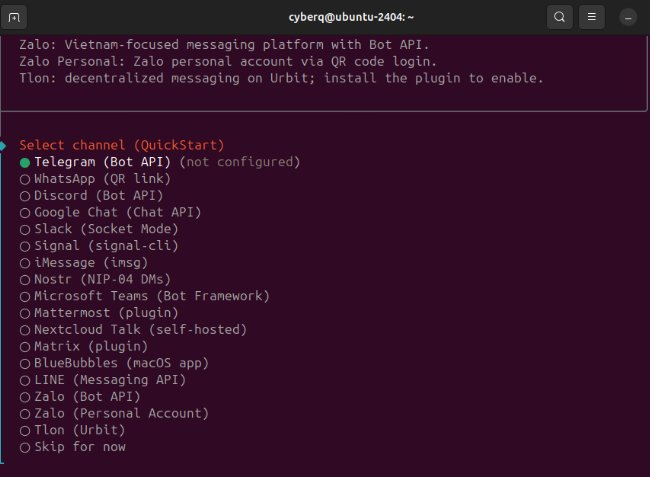
The image above shows the various instant messaging (IM) platforms combinations currently supported by Moltbot.
Based on QNAP’s official technical guides and CyberQ’s hands-on experience with container deployments, we have compiled several key procedures for deploying Moltbot on a QNAP NAS—turning your workstation, computer, or NAS into a foundation for an AI personal assistant.
This architecture not only eliminates the need to purchase a Mac mini, but also provides stronger interactive capabilities while retaining the stability of a NAS, making it a highly cost-effective and practical solution.
If you want to run Moltbot on a QNAP NAS, the most standard and stable approach is to use Ubuntu Linux Station. It is a lightweight container-based virtualization environment built on LXC, providing a full Ubuntu desktop experience while leveraging the storage advantages of a NAS
Implementation Overview:
Environment Preparation: Log in to the QTS or QuTS hero operating system management interface, then download and install Ubuntu Linux Station from the App Center.
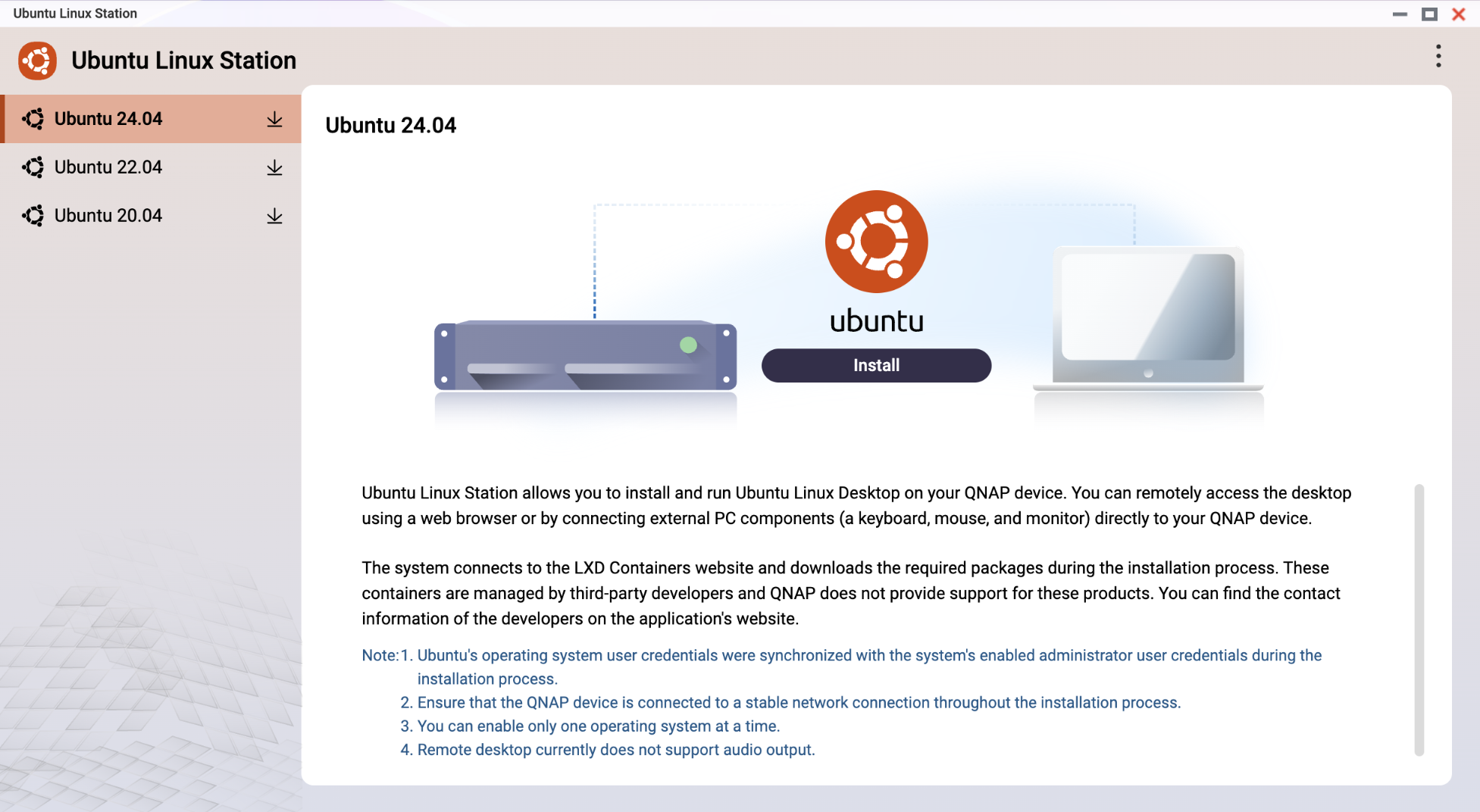
System Installation: After launching Ubuntu Linux Station, select and install Ubuntu 24.04 (the LTS long-term support version is recommended).
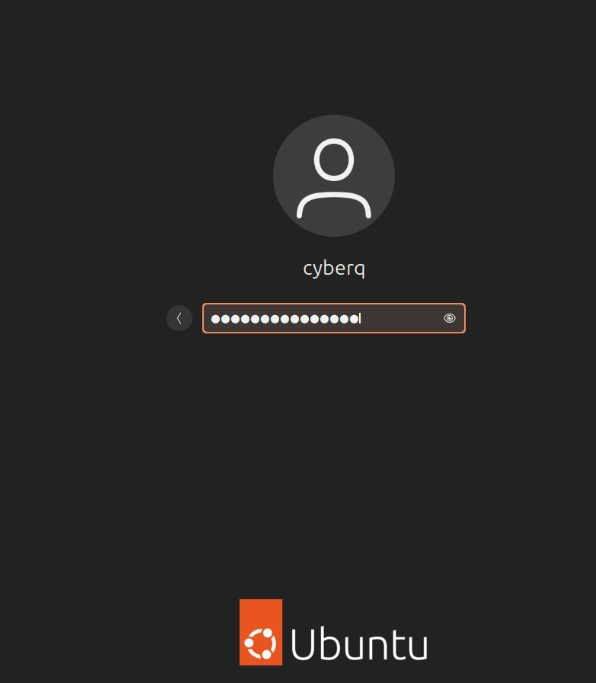
Terminal Access: Connect to the Ubuntu desktop via VNC, open the terminal, and proceed with the following installation steps. The installation methods are mostly the same across different platforms, and the configuration settings and options are generally similar.
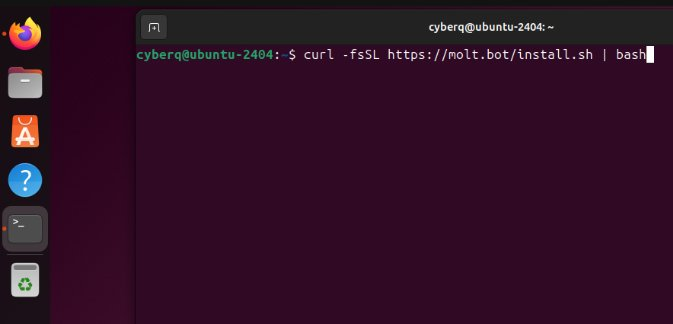
For one-click deployment, users can simply run the installation command provided by Moltbot (usually a script starting with curl), and the system will automatically download the required dependencies and complete the installation. For Linux, the commonly used one-click installation command is as follows:
curl -fsSL https://molt.bot/install.sh | bash
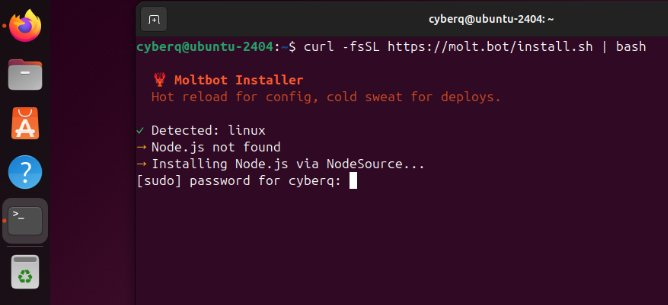
Binding a messaging platform is the most crucial step. By following the setup wizard and entering your Telegram Bot Token or credentials for other supported messaging platforms, you can control your NAS-based AI agent remotely from your mobile device.
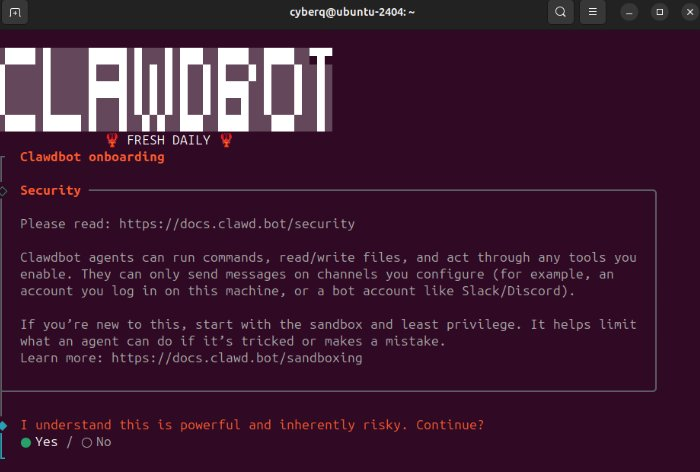
Although the installation process involves several steps, each can be completed in order. This includes configuring the required AI API keys, setting up IM platform tokens, and installing the default Skills to extend your AI agent’s capabilities.
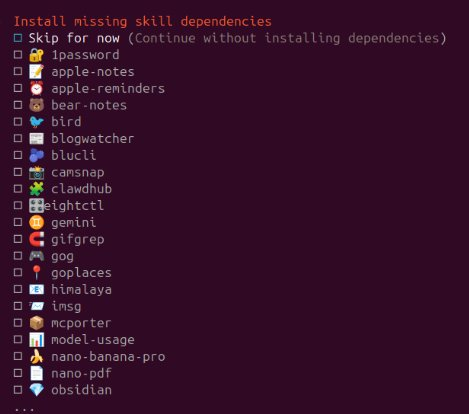
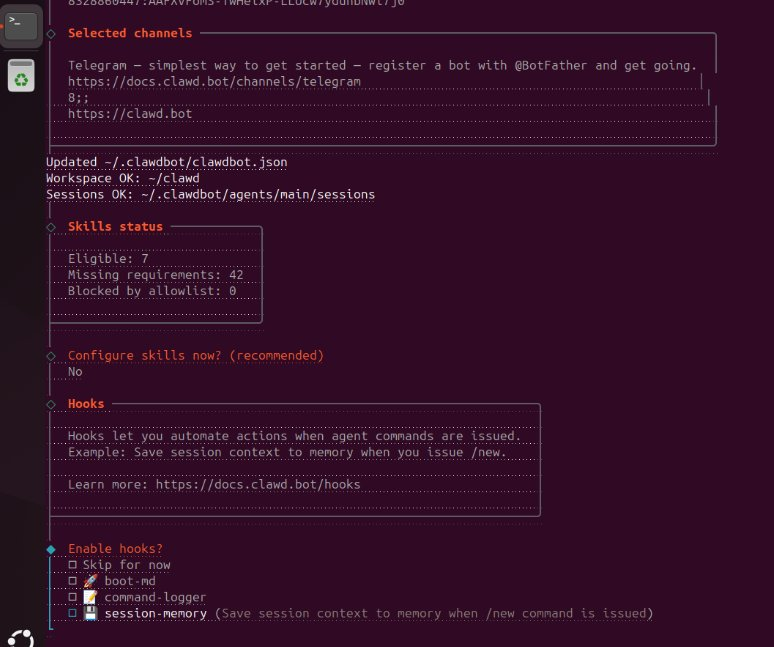
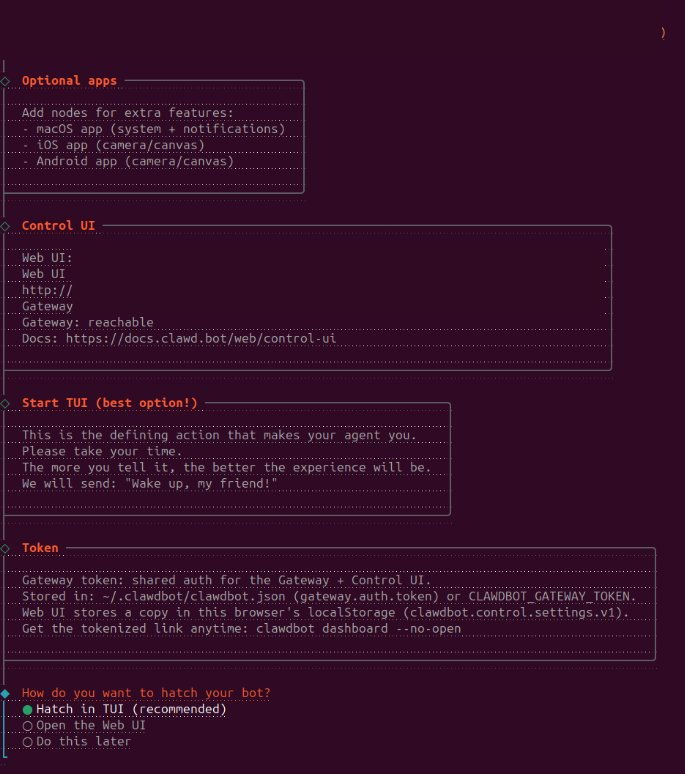
With this deployment approach, Moltbot is available 24/7, ready to handle tasks like document summarization, email processing, or organizing your data. Moreover, it runs in a container within Ubuntu Linux Station, and any mistakes the AI makes won’t affect your QTS system or other NAS data.
As for other deployment methods, the process is mostly the same. However, it is important to note that specifying file directories and integrating with related applications take quite a lot of configuration. That said, given its powerful capabilities, the range of various Skills and service integrations continues to grow.
This is another recommended and secure solution suitable for most scenarios. Whether you're using a QNAP NAS, a Linux server, a Windows PC, or a workstation, Clawdbot / Moltbot can be deployed as long as Docker is supported.
You can deploy the Clawdbot / Moltbot Docker container image on a QNAP NAS using Container Station or the Portainer container management platform introduced by CyberQ. Alternatively, you can deploy Clawdbot / Moltbot on a Linux server or Windows Docker Desktop. The correct tag for the official Docker container used for deployment is as follows:
ghcr.io/Moltbot/Moltbot:main
Before deploying the container on a Linux server, Windows Docker Desktop, or a QNAP NAS, it is recommended to create a directory first: mkdir Moltbot && cd Moltbot
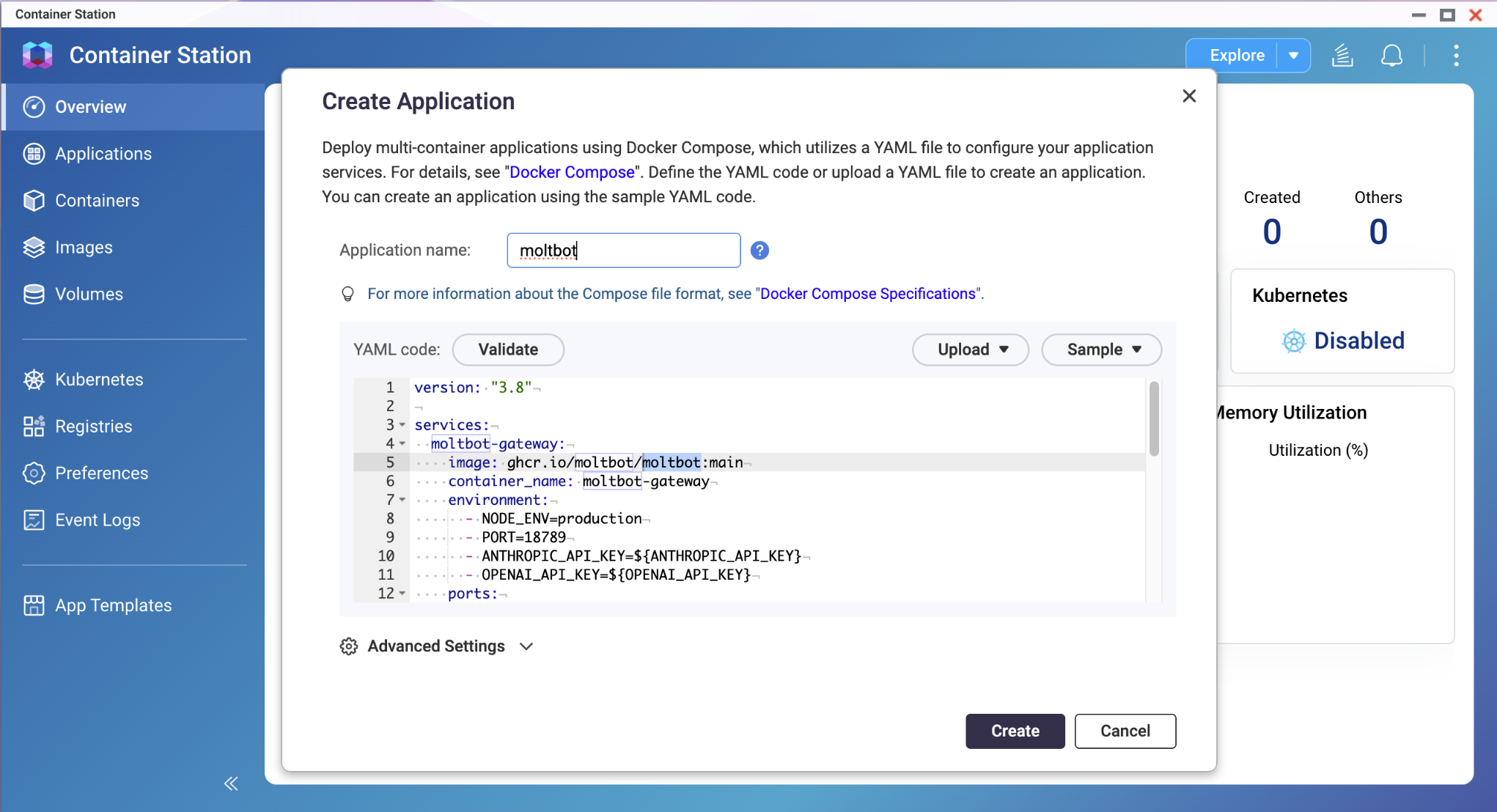
After the container deployment is completed, the installation and configuration interface is the same as the example demonstrated earlier in Ubuntu Linux Station. You can follow the setup step by step, and then start using it by installing and configuring additional Skills to help with your daily tasks.
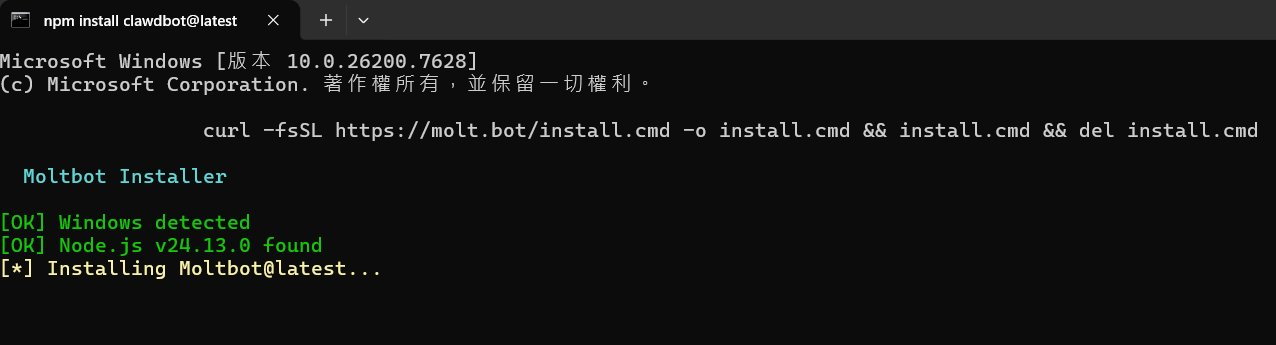
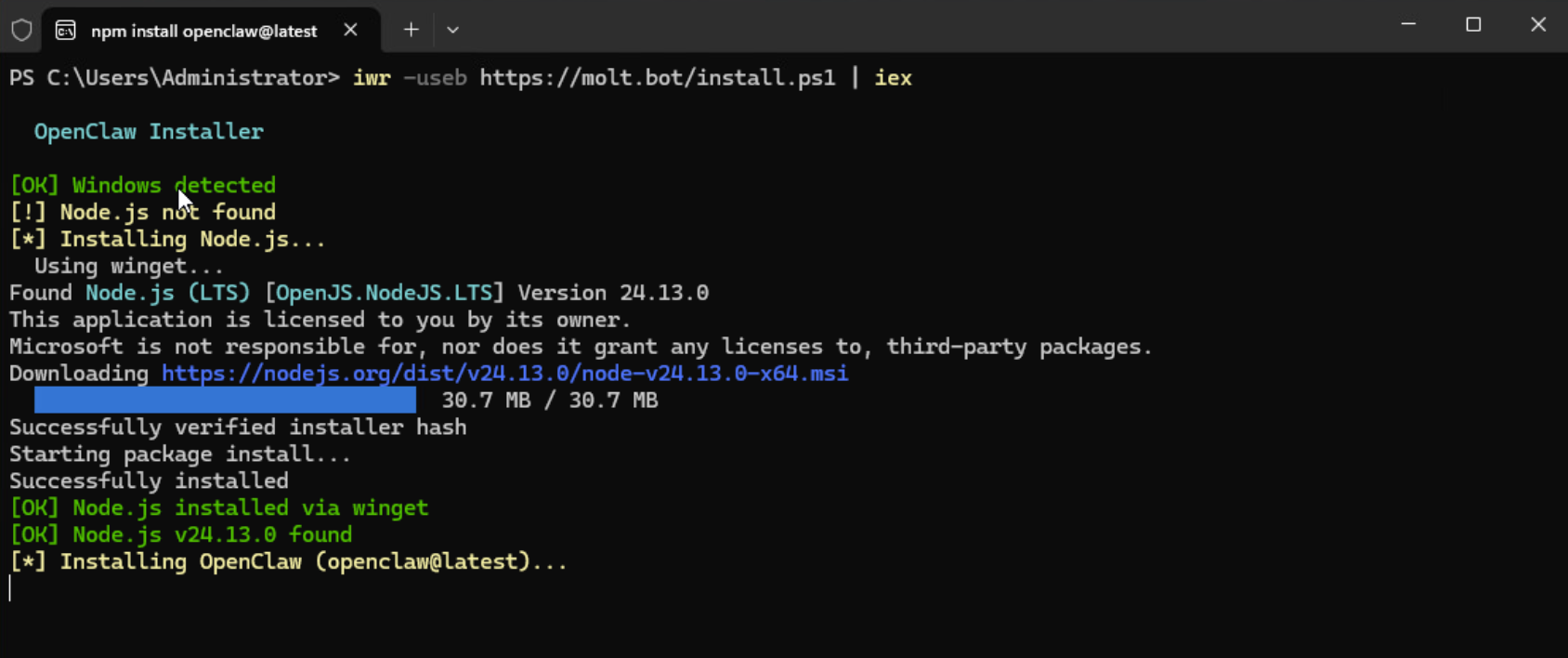
On Windows, if you skip the container-based installation and need deeper system integration, you can use two official installation commands. However, due to the risks involved, this approach is generally not recommended for most users unless you are technically proficient.
Installation Command in the cmd Terminal
curl -fsSL https://molt.bot/install.cmd -o install.cmd && install.cmd && del install.cmd
Installation Command in PowerShell
iwr -useb https://molt.bot/install.ps1 | iex
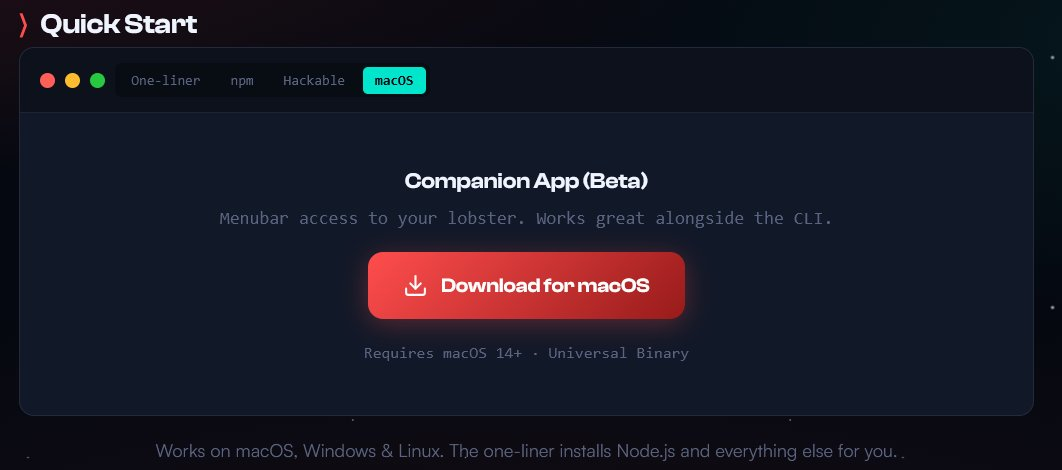
For macOS users, the author provides an installation option for the Companion App (beta). If your Mac is running macOS 14 or later, please visit the official website to download it.
Here, we will briefly explain the main differences between Mac and non-Mac platforms, which are in the IM layer.
A. iMessage (Blue Bubbles)
The operating principle relies on Local Bridging, as Apple doesn't provide an official iMessage Bot API. Moltbot works by running command-line tools (such as imsg CLI or AppleScript) locally on macOS, directly operating the built-in Messages app on the Mac to send and receive messages.
A Mac is required, as only macOS provides the Messages app and the necessary low-level system permissions. That means these commands cannot be executed in Linux-based Docker environments on a QNAP NAS or on Windows.
That's why many people are choosing an affordable Mac mini—it's one of the reasons.
In practice, its main advantage is the strong native feel. For iPhone users, it's just like chatting with a friend from their contacts. It supports CarPlay and doesn't require any extra apps. The downside is that the Mac basically becomes an expensive dongle—if it crashes or goes to sleep, Moltbot will stop working.
B. Telegram / Discord / Slack and Other IM Platforms
The operating principle is based on cloud APIs and WebSockets. These platforms provide official Bot APIs. Moltbot only needs to communicate with their servers over the network (via WebSocket or HTTP requests).
This means Moltbot can run on any platform that supports Node.js or Docker—there are no hardware restrictions. Devices such as a QNAP NAS are an optimal solution, since they are designed to run 24/7, offer highly stable deployment via Docker, and consume very few system resources.
In practice, the advantage is extreme stability, with no risk of disconnections caused by IM platform updates or connectivity issues. Telegram Bots even support button-based menus (UI), offering better interactivity than text-only iMessage.
This is where many users get stuck. Unlike traditional services that provide a web-based admin interface immediately upon startup, Moltbot requires running a CLI wizard to bind the messaging platforms.
Once the deployment is complete and the container status shows Running, please follow the steps below to configure the IM connection:
Step 1: Enter the Container Terminal
Portainer/QNAP: Locate Moltbot in the container list, click the “>_ (Console)” icon, then click “Connect” (using /bin/sh or /bin/bash).
Linux/Windows CLI:
docker exec -it Moltbot /bin/bash
Step 2: Run the Onboard Wizard
In the container terminal, enter:
Moltbot onboard
Step 3: Interactive Configuration
The wizard will guide you through the following bindings:
AI Provider: For example, if you choose Anthropic, the system will detect the key configured in the YAML file (or you can also enter it at this stage).
Messaging Platforms:
Telegram is recommended: it will prompt you to enter the Bot Token (please obtain it by contacting @BotFather in Telegram).
Admin User: Set your username so that the Bot knows whose commands to accept, preventing control by unauthorized users.
Step 4: Restart the Container
Once the configuration is complete, enter “exit” to leave the terminal, then restart the container to apply the settings:
docker restart moltbot
Please pay close attention to the image source. As the project has recently been renamed, if ghcr.io/Moltbot/Moltbot:main cannot be pulled, refer to the official documentation for the latest tag path. Never use the old ghcr.io/clawdbot/clawdbot:latest, and be careful with images from communities or unknown sources on the internet, since hackers may have embedded malicious code in them.
Don't forget to back up your data. The mounted /root/.moltbot directory is extremely important, as it contains all Moltbot Memory Vector Store and API keys. Make sure to back up this directory regularly.
Google Chat permissions are a bit tricky, as Google’s API permission model is quite complex. It is recommended to first get the workflow running with Telegram and confirm that the bot logic is functioning correctly, then set up OAuth in the Google Cloud Console.
According to CyberQ’s observations, Moltbot's core security threats require careful attention. This is because Moltbot operates with high-level system privileges (such as access to messaging accounts, API keys, and the system shell). Its potential risks are primarily associated with the abuse of elevated privileges. If it is granted “administrator-level local access”, an attacker could potentially gain control of the system, which should not be taken lightly.
In addition, Prompt Injection attacks also deserve attention, as attackers can manipulate the AI through crafted commands to read sensitive data or execute malicious actions.
Credential leakage is an issue that should be avoided as much as possible. There have been many past incidents where API keys and account credentials of various services were exposed on the internet, and this is a vulnerability that may be encountered during configuration and deployment in practical implementations.
In response to these risks, CyberQ proposes the following information security protection principles for Moltbot:
Strictly follow the principle of least privilege: Avoid granting the AI agent access to unnecessary data or high-level system permissions.
Carefully review security documentation: Fully understand the potential risks before authorizing access to critical resources.
Establish secure connections: It is recommended to use external tools (such as Cloudflare Tunnel) to enhance the security of connections between local AI services and the network.
CyberQ believes Moltbot’s recent surge in popularity demonstrates the strong market demand for AI agents that can actually get things done. The popularity of such tools has unexpectedly driven demand for infrastructure software. For example, Cloudflare has attracted investor interest because its secure tunnel services effectively mitigate connection risks for AI agents, leading to a short-term upward trend in its stock price.
Whether you deploy Moltbot on a Mac mini or a QNAP NAS, the wave of local AI agents sparked by Moltbot is pushing us beyond simply conversing with AI toward a stage where AI can actually take on real tasks. It is expected that more related services will emerge and continue to mature in real-world adoption—let us wait and see.
Reposted with permission from CyberQ
