Categories
Blog posts about QNAP's products and technologies.
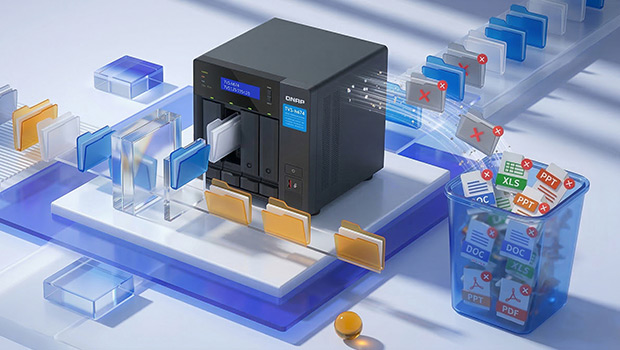
Whether it’s an internal hard drive, an external drive, or a NAS, duplicate files are almost inevitable over time. This is true for individual users—and even more so in multi-user setups. Over time, these duplicate files will keep growing, wasting storage space, slowing down backups, and potentially putting your data at risk.
Is it really that serious? Let’s take a look at a few simple examples.
1. After a photo session, a photographer copies the photos from the camera’s memory card to the NAS but forgets to format the card. The next time they take a new batch of photos, they copy the entire memory card to the NAS again. Whether they realize the files are duplicates or simply don’t remember what was already transferred, duplicate copies end up on the same drive, which does little to help with backups.
2. An exhibition coordinator in the marketing department saves a key visual image for a booth in Folder A. A designer in the same department also saves a copy of the same image in Folder B to make their work easier. Later, when delivering files to an external design agency, they create yet another folder to store the same file so the agency can access it. In the end, the hard drive ends up containing three copies of the same file. A week later, the 3-2-1-1-0 backup strategy, set up by the well-versed MIS team, kicks in, resulting in these duplicate files being backed up several more times.
Both of the above scenarios are very common. In addition to wasting storage space and time, having too many duplicate files can make version management difficult. Over time, it may become hard to tell which files are identical, and this can even lead to accidental deletion—leaving no valid copy behind.
Therefore, regularly cleaning up your files is a good habit to save both time and storage. However, going through files one by one can be very time-consuming, so it’s best to use third-party tools to get the job done.
If things are not properly named, explanations won’t make sense. Before we proceed, let’s clarify the task: we are looking for files and photos on the NAS that are exact duplicates. Some applications focus on “finding similar photos”, but that’s a completely different type of task, which we can talk about another time.
As for identifying exactly identical photos, since photos exist on a hard drive as files, any files with identical content are essentially the same image. This allows us to simplify the task’s core goal: just find duplicate files. This process is commonly referred to as “deduplication”.
Here comes the challenge: how do you find and compare them? Most tools follow the same underlying algorithm and logic, which generally works as follows:
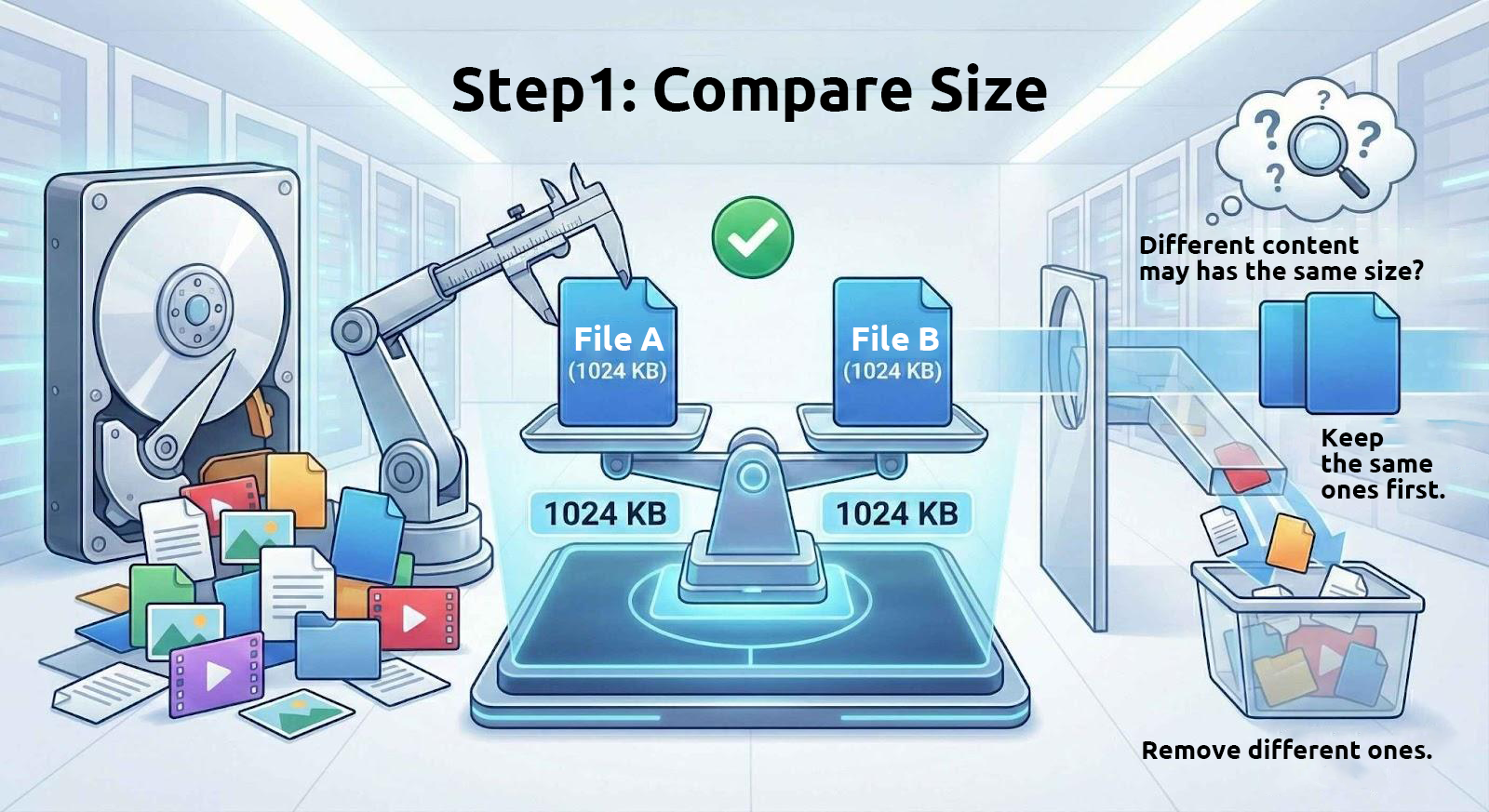
1. Compare File Sizes First
Files with identical content always have the same size. Therefore, these tools start by filtering out files of identical size from the drive.
However, files with the same size do not necessarily have identical content. For example, many split archive files are divided into fixed-size parts, and text files with the same number of characters will also have the same size. Thus, using file size alone to determine whether files are identical is only the first step.
2. Then Compare the Files’ “Fingerprints”
Because digital files are stored in binary form, a unique hexadecimal string—called a “hash value”—can be generated from the contents of each file using mathematical algorithms. Different algorithms produce different hash values. Algorithms that require more computation (such as SHA-512) are more reliable but take more time, while those that require less computation (such as MD5) are faster but less reliable.
As long as the files are different, these hash values are, under normal circumstances, very unlikely to be identical. A more technical term for this is “collision”; the only difference is how easily they can be forged. We can think of a hash value as a unique fingerprint for each file. If two files have identical fingerprints, they are identical.
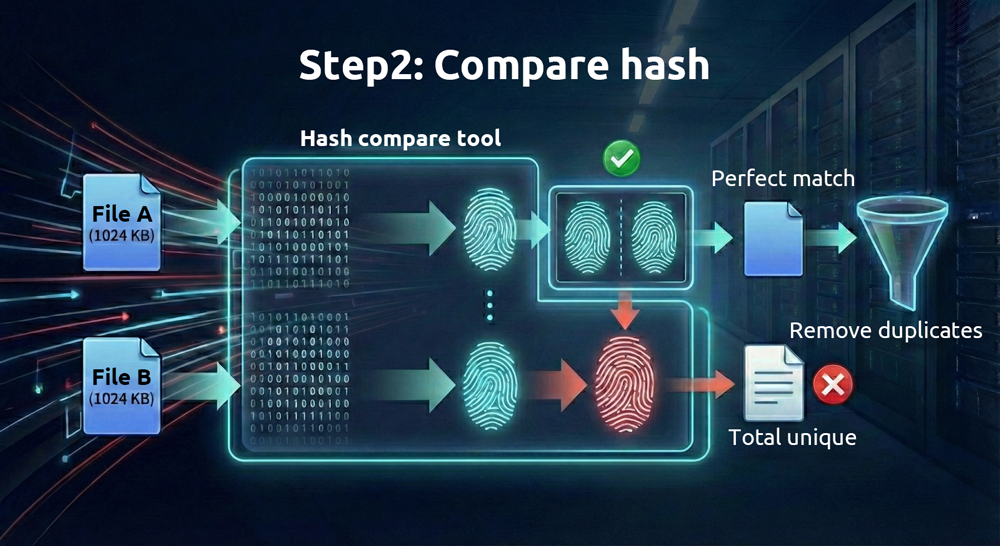
Given the high reliability of hash comparisons, why is it still necessary to check file sizes first? Doing so helps save time and resources. Comparing hash values is computationally intensive, but identifying files with identical sizes is almost effortless for modern computers. By first narrowing down the number of files based on size before performing hash comparisons, the process becomes much more efficient.
Many desktop applications on Windows and macOS can handle this task. However, if the files are already on a NAS, running the process directly on the NAS itself can save considerable time. There are two main reasons for this:
1. Network Transfer Time
Calculating hash values requires reading the full contents of each file. Performing frequent reads of NAS files from a local computer is inefficient.
2. Native Tool Support
Although NAS devices generally don’t come with simple built-in deduplication tools (QNAP HBS does provide deduplication for backup tasks, which will be discussed in a future article), there are a wide range of Linux utilities that can accomplish this task.
On a QNAP NAS, first enable SSH and log in to the command line remotely. Then, install the jdupes utility via QPKG. Note that jdupes is not an official QNAP utility; if there are any security concerns, it is advisable to perform these tasks within a Docker environment.
The command-line options for jdupes are quite simple. For example, to locate duplicate files in the current directory, including all subdirectories, use the following command:
jdupes -r .
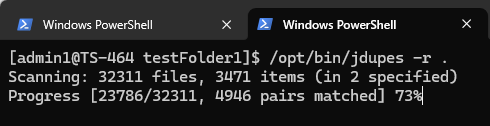
The “-r” option stands for recursive, and the “.” means the search starts from the current directory. Once executed, the utility starts scanning file contents, and the required time depends on the number and size of the files. Because this tool frequently reads from the drives inside the NAS, running it on a solid-state drive (SSD) will be much faster.
Once the comparison is finished, the utility lists all duplicate files and organizes them into groups, as shown below:
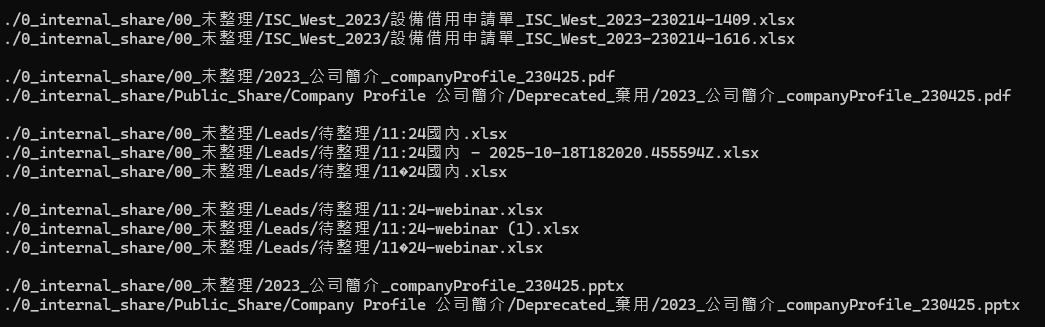
You’ll notice that many files with different names or paths are essentially identical. After identifying duplicate files, the next step is to delete them. Add “d” to the previous command, for example:
Jdupes -rd .
When displaying the results, the utility prompts the user to select which file to keep; the rest are deleted. This method works fine for a small number of files, but when dealing with large numbers—say, thousands of duplicate sets—it’s impractical to confirm each one individually.
At this point, you can add “N” to the command, like this:
Jdupes -rdN .
The “N” means “Don’t ask, just keep the first matching file found”, and all others will be deleted automatically. After running this command, only one copy of each identical file will remain in the target directory, effectively deduplicating it.

In the figure above, files prefixed with “+” are kept, while those prefixed with “-” are deleted.
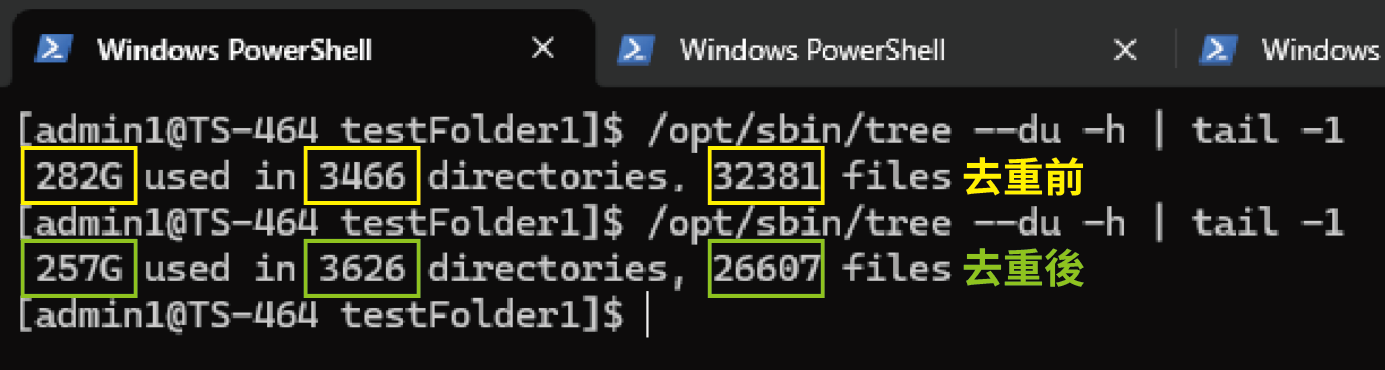
In our test for this article, the original directory totaled 282 GB and contained 32,381 files. After deduplication, the total size was reduced by 8–17%. The directory was located on an SSD in the TS-464, and the entire operation took approximately 30 seconds. After the operation, not only was a considerable amount of space saved, but backup times were also much faster.
At this point, some users might wonder: “What if I want to keep files in a specific directory?” or “Surely files in important directories shouldn’t be deleted, right?”
For example, to keep the files in C:\Important, you can use the following command:
jdupes -rdN -X “path:Important” .
Files with paths containing “Important” will be excluded from deletion.
Cleaning up duplicate files is not just about freeing up a few gigabytes of disk space; it can be seen as a form of digital decluttering. With high-performance tools like jdupes, manual comparison that once took days can be completed in minutes through automation. This significantly boosts NAS storage efficiency, streamlines backup process, and ensures that every piece of data under the 3-2-1-1-0 backup strategy remains unique and valuable.
By cultivating a habit of regular cleanup and using the right tools, a NAS can truly function as a “high-performance data center”, ensuring that every bit of storage is put to optimal use.
