Categories
Blog posts about QNAP's products and technologies.
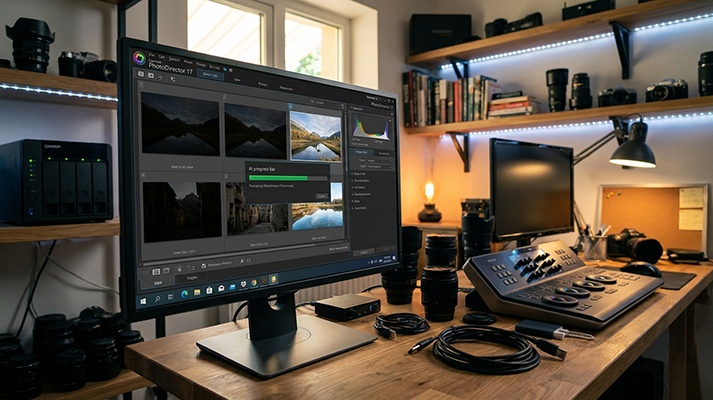
Photographers often need to process large volumes of high-resolution RAW images, making storage capacity and editing performance two of the biggest challenges. This demonstration combines QNAP NAS with CyberLink PhotoDirector, enabling direct photo imports from network drives and applying batch noise reduction to streamline the editing workflow. It also demonstrates how mounting SMB, NFS, or AFP (Apple Filing Protocol) on a NAS can help optimize tasks in AI media workflows.
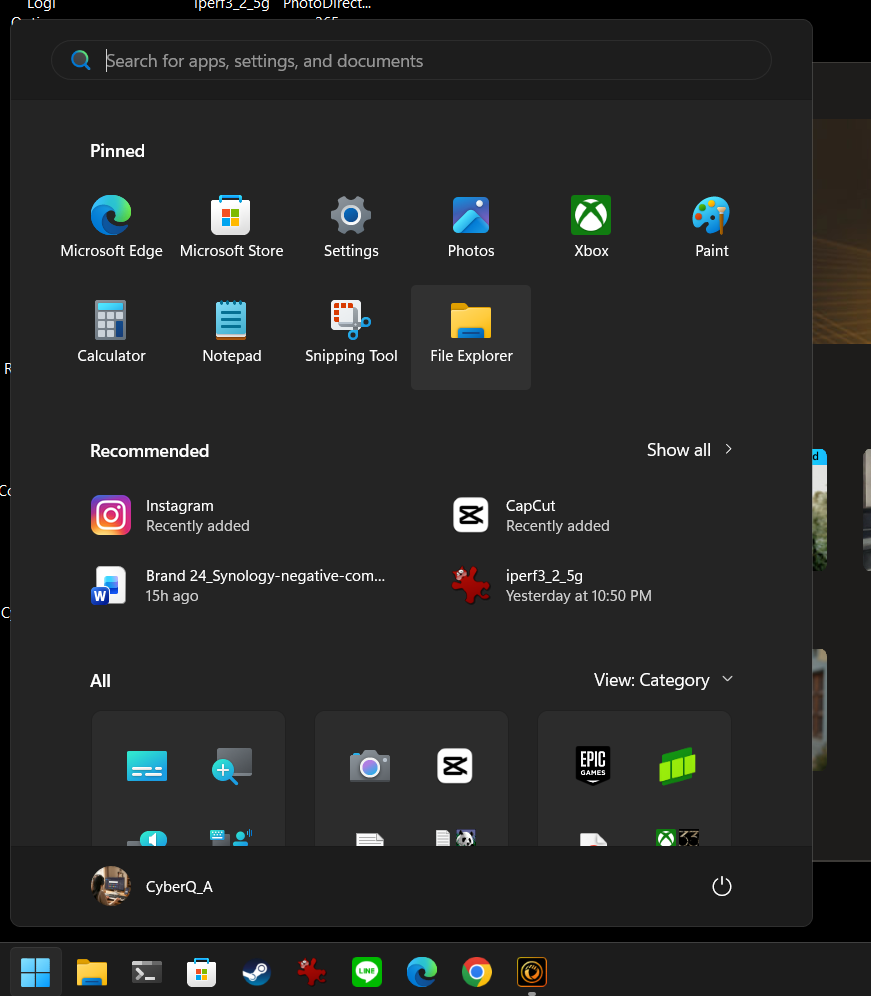
To allow editing software to access photos stored on the NAS, first map the NAS folder as a network drive on the computer. Start by opening Windows File Explorer, the standard file management interface.
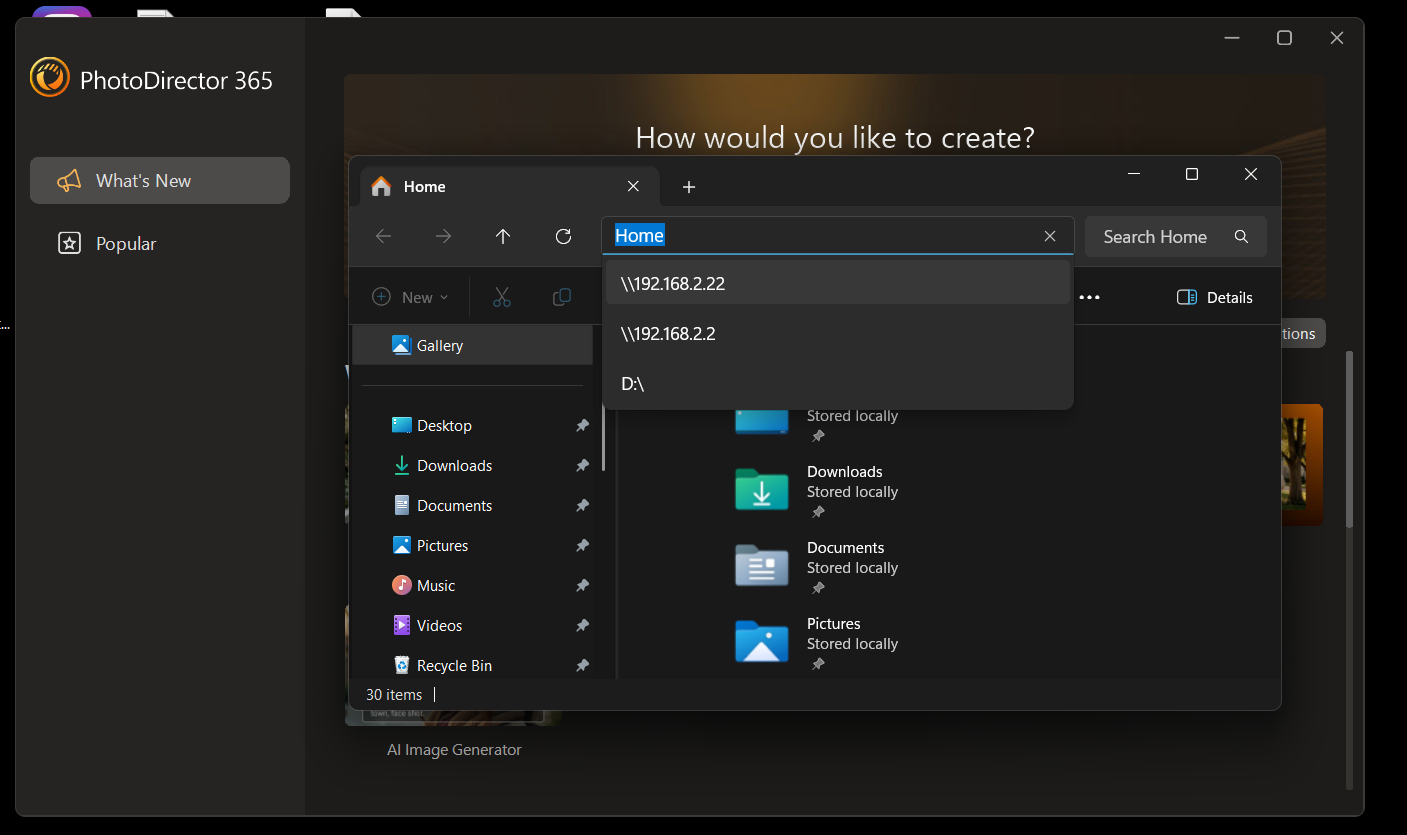
Enter the NAS IP address, such as \\192.168.2.22, in the File Explorer address bar. A list of shared folders on the NAS will then be displayed.
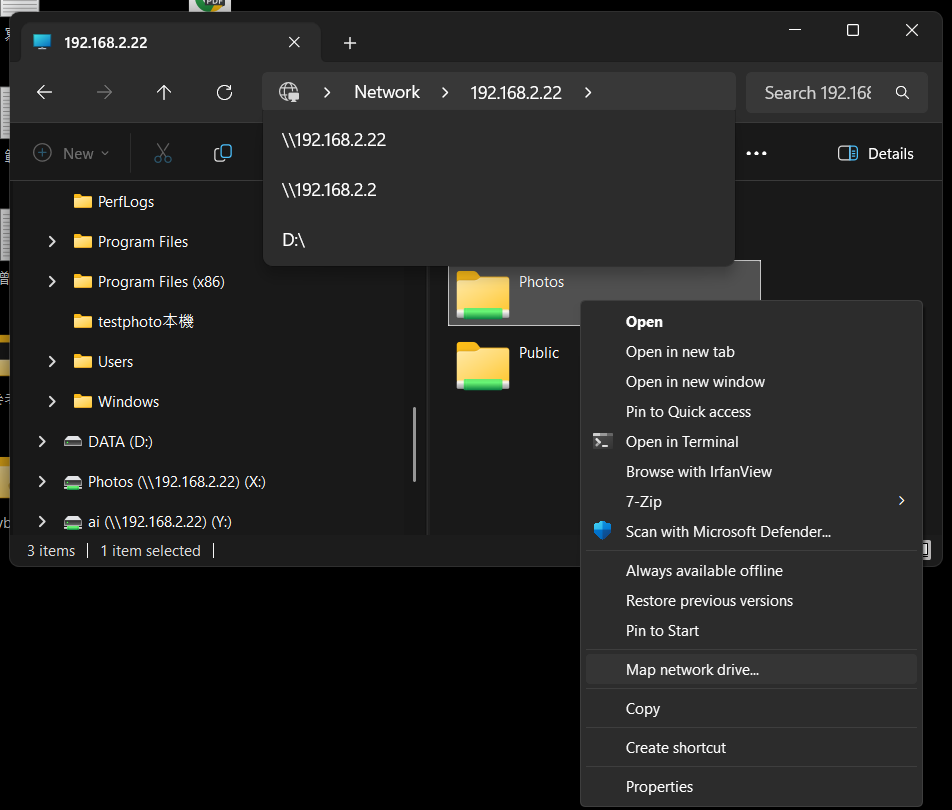
After locating the folder containing the photos, right-click the folder and select “Map network drive”. This allows us to map the NAS shared folder as a network drive on the computer, enabling applications to quickly access data.
On macOS devices, the process is similar. In Finder, go to “Go > Connect to Server” and connect via SMB. Enter the server address in the format smb://[NAS IP address], then enter the account credentials to mount the shared folder on the Mac. The mounted folder can also be added to Login Items for quick access.
For a smoother photo editing workflow, enable hardware acceleration in the preferences if your computer has a dedicated GPU. In PhotoDirector, go to the main editing interface and configure the preferences.
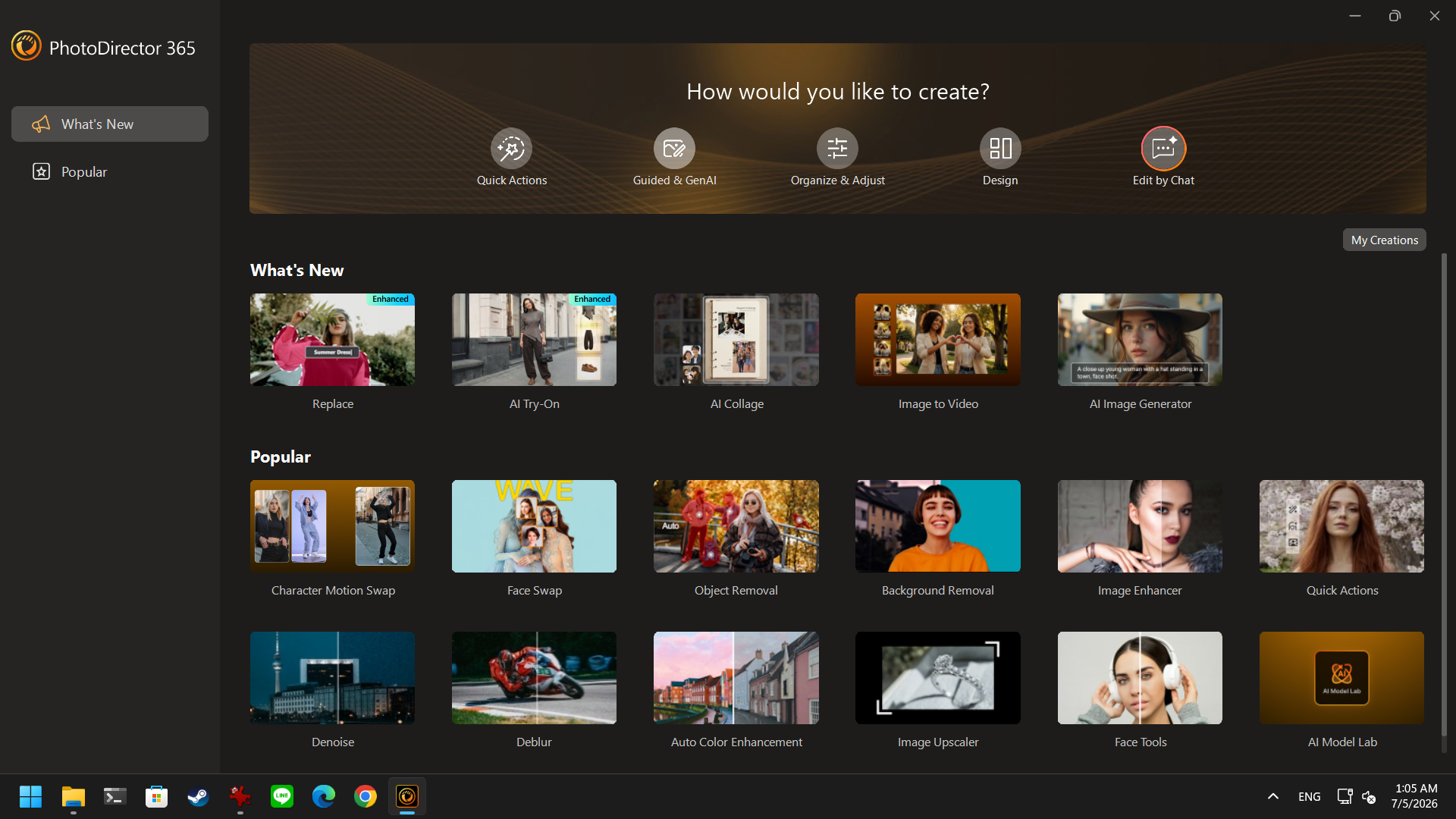
Click Edit in the upper-left corner to open the Preferences window, then locate the Hardware Acceleration option.
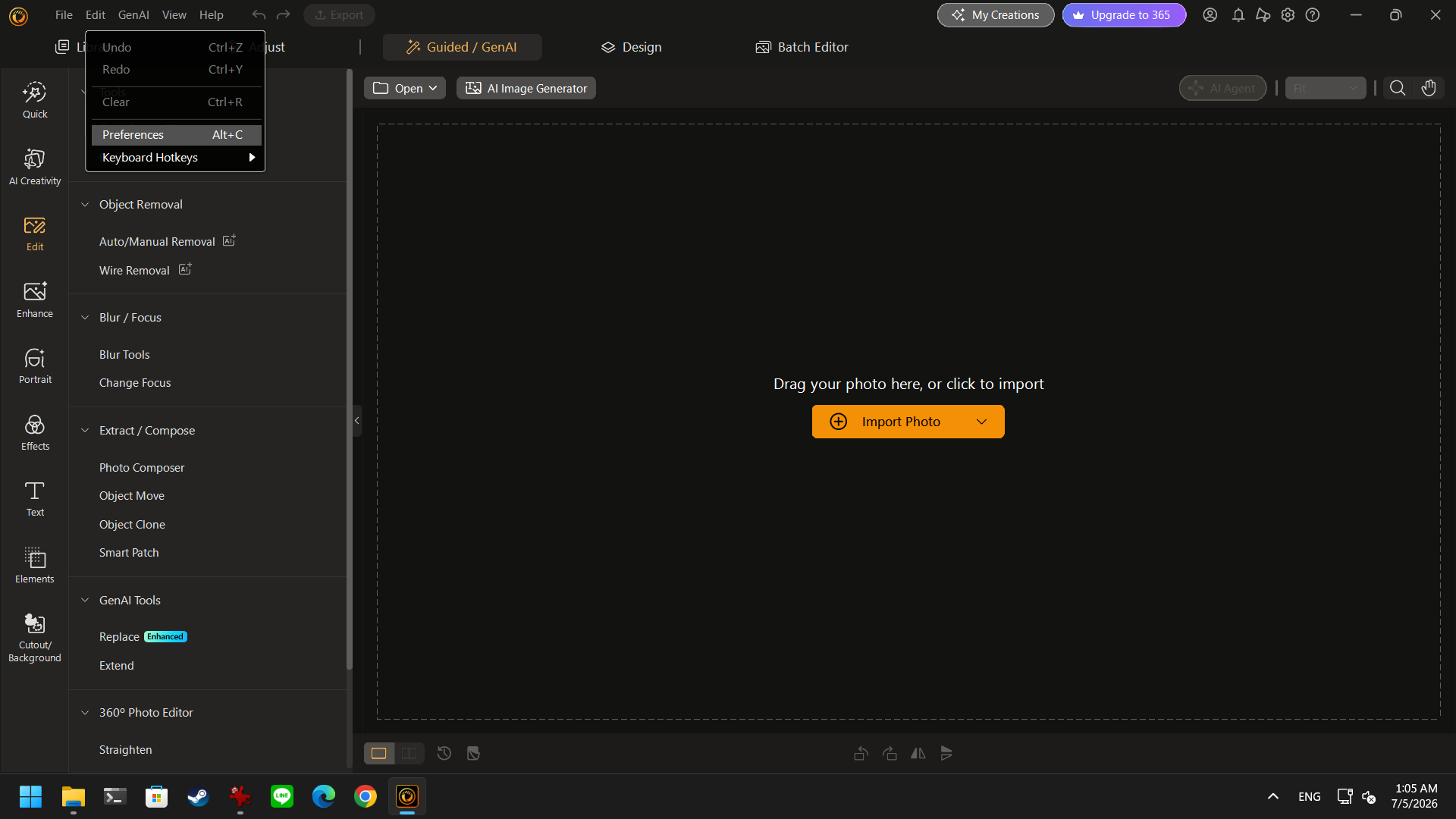
Enable the following options: Use OpenCL technology to accelerate photo export, enable hardware acceleration for video decoding, and set AI feature performance to GPU mode. This allows the software to fully utilize the GPU’s computing power.
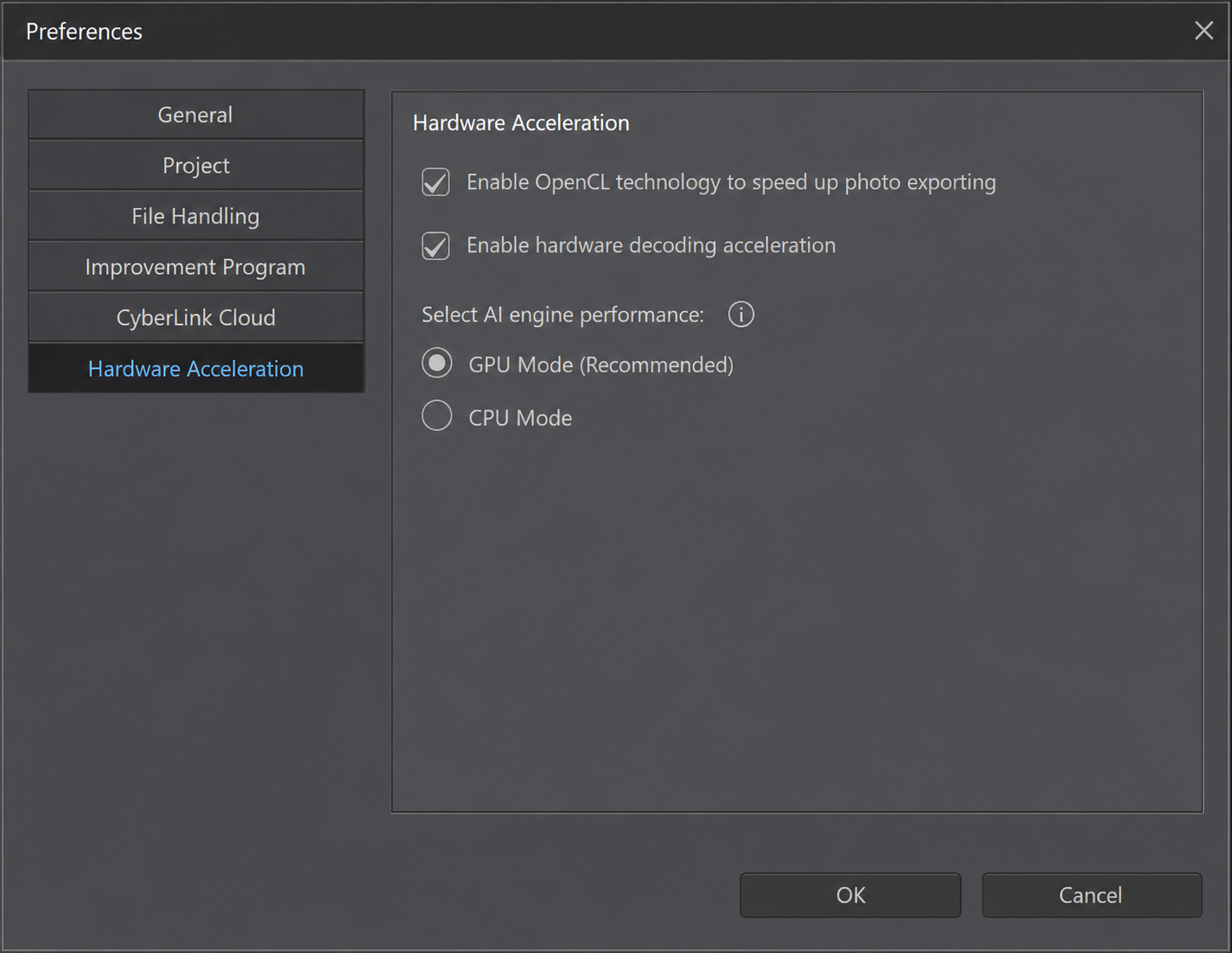
The test was conducted using 100 RAW files in CR2 format, with each photo approximately 15 MB in size, as shown below.
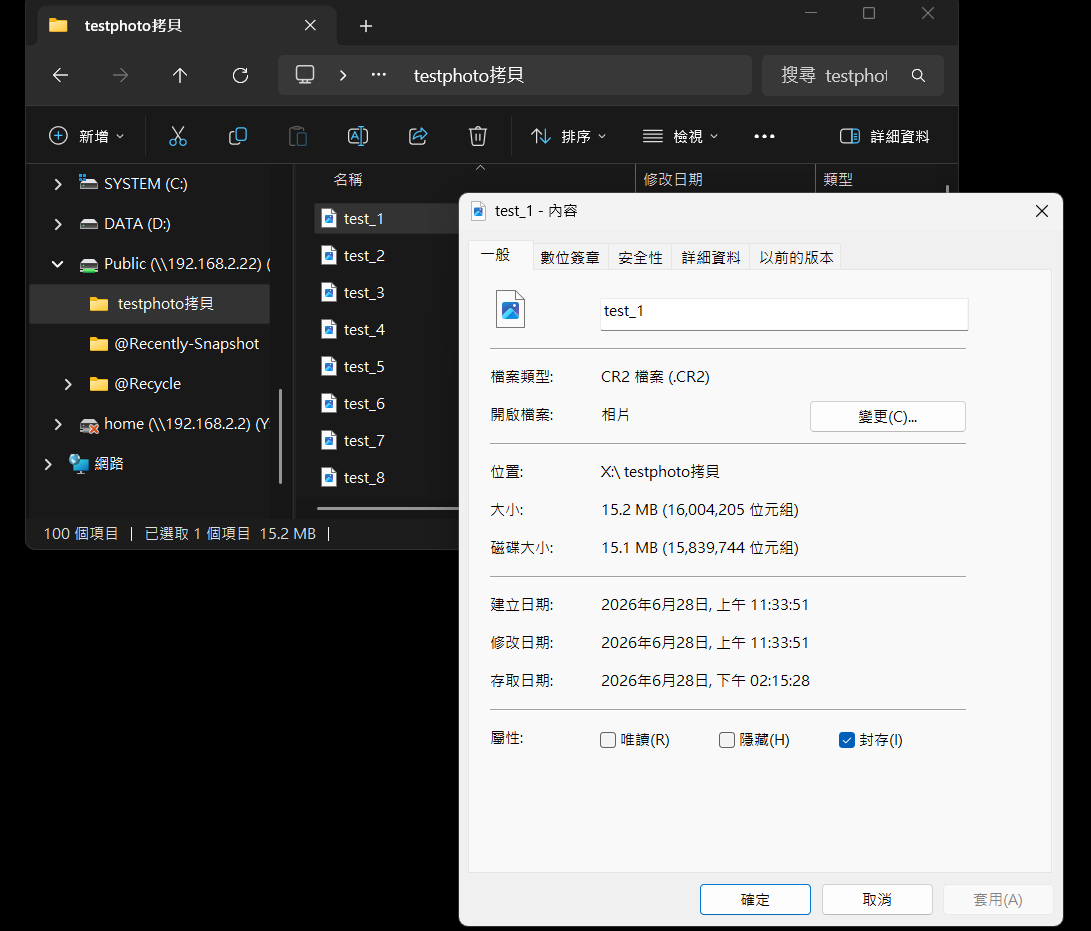
Next, open Batch Editor in PhotoDirector to process a large number of photos.
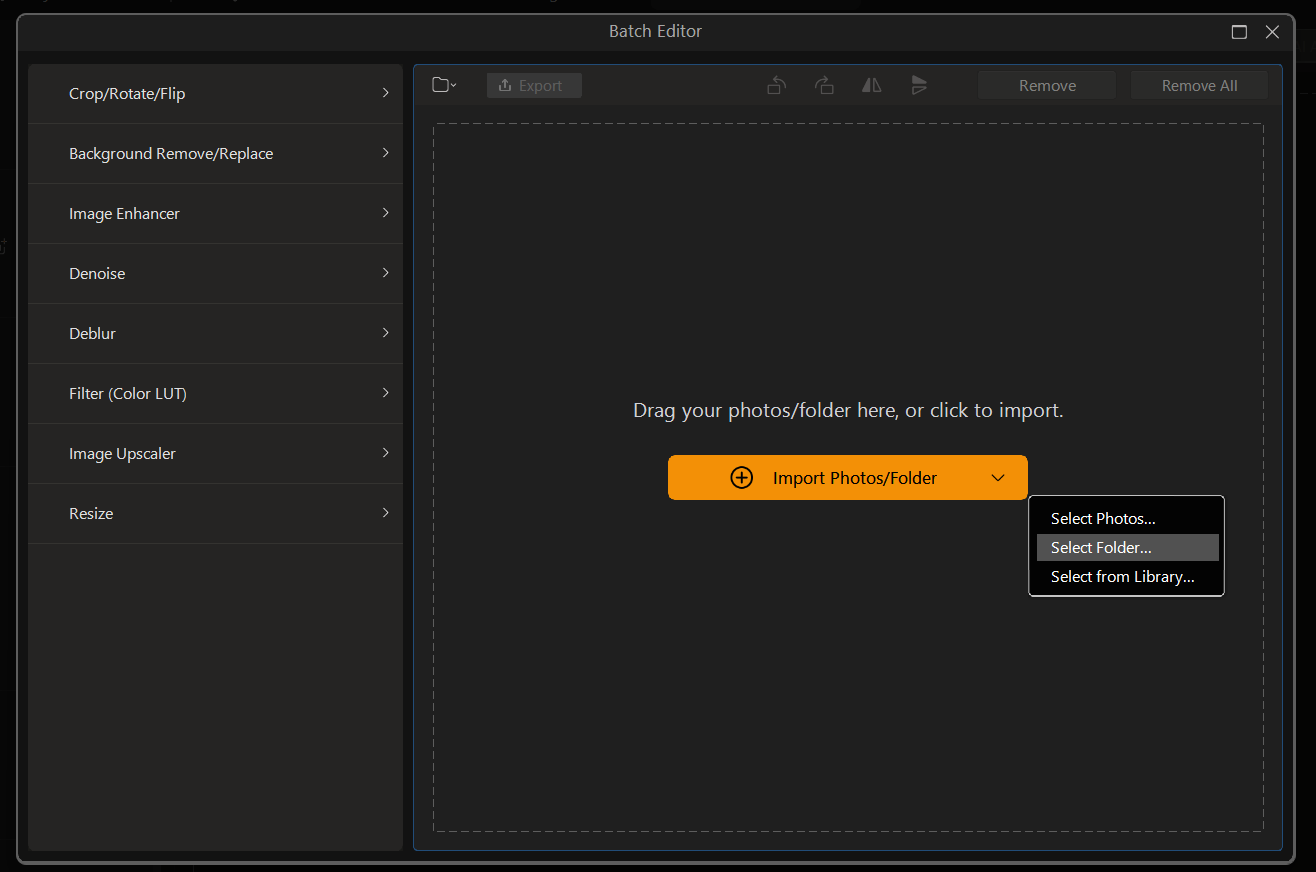
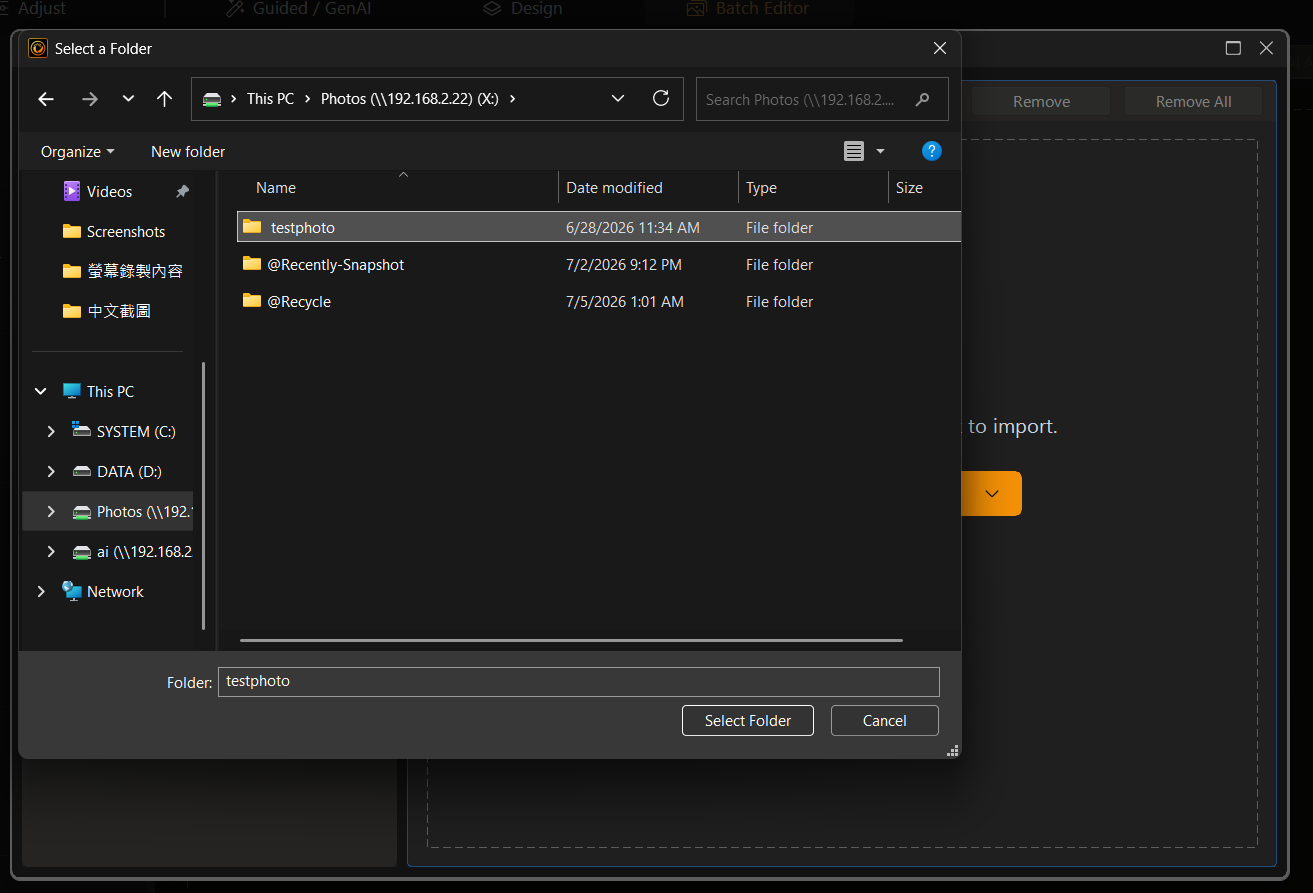
Click Import Photos/Folders, navigate to the previously mapped NAS network drive, and select the folder containing the test photos.
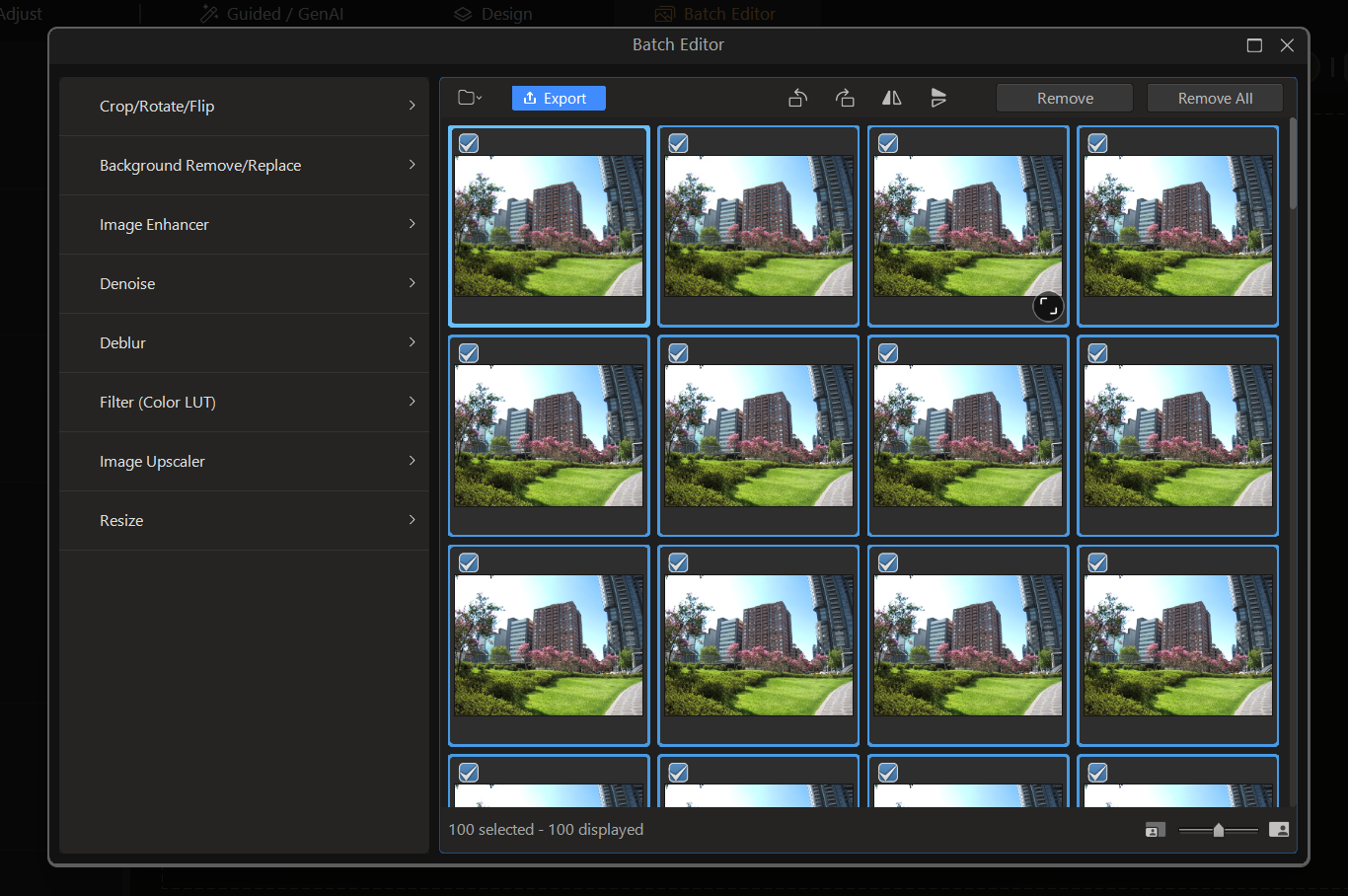
Select all 100 RAW files by pressing Ctrl+A, then open the Noise Reduction panel from the left menu to apply noise reduction.
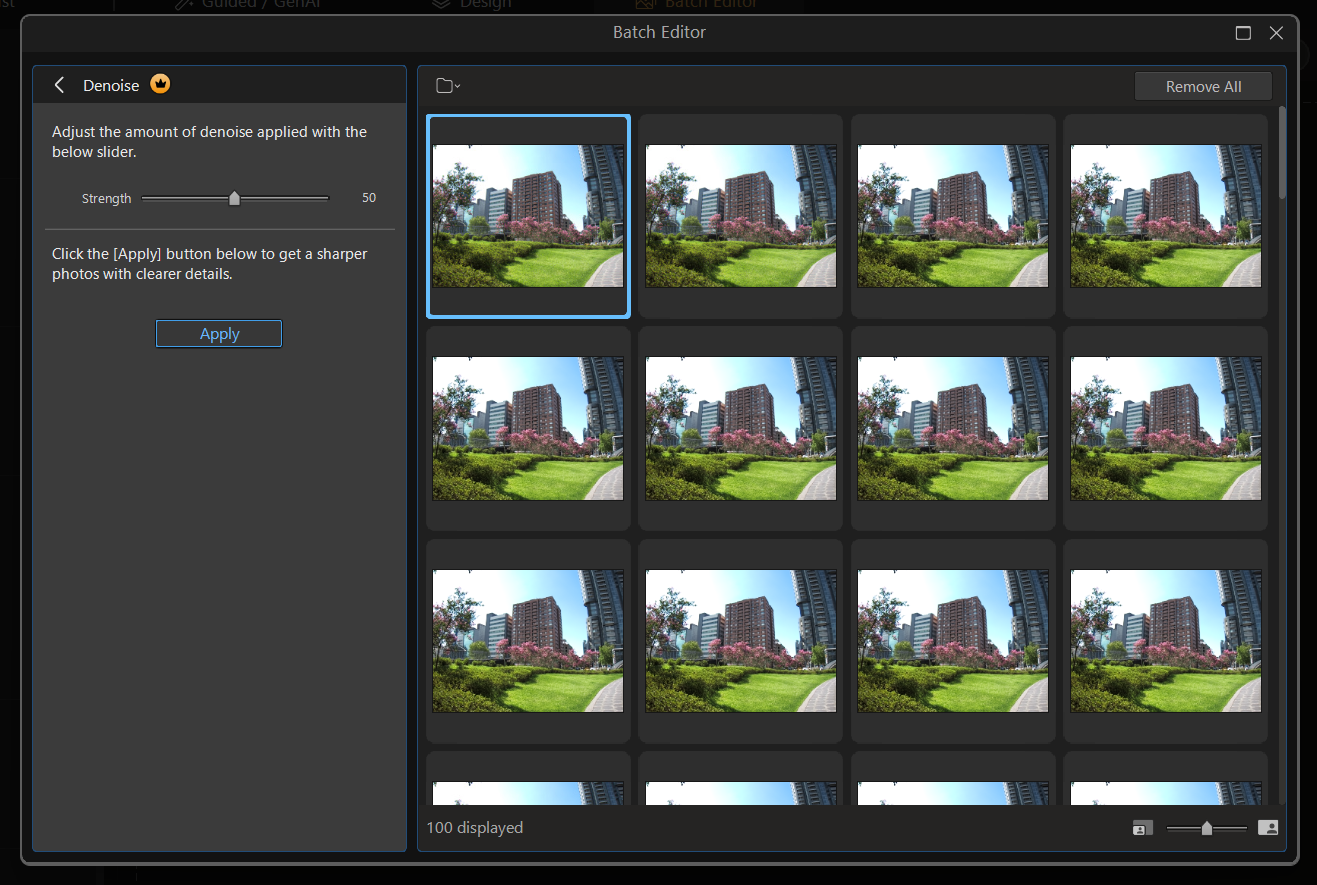
In the Noise Reduction panel, adjust the level by dragging the slider as needed. Once the desired level is set, click Apply to start processing automatically.
A processing dialog box will then appear, showing the progress for the batch noise reduction. With Hardware Acceleration enabled earlier, the batch processing of these 100 high-resolution RAW files runs smoothly.
You can also watch the video below to see a read performance test of importing these 100 RAW files directly from the NAS into the software and observe the smoothness of both network transfer and application loading.
For professional photographers and visual content creators, massive RAW files can quickly take up local storage. Centralizing image assets on a QNAP NAS is an effective solution for expanding storage capacity.
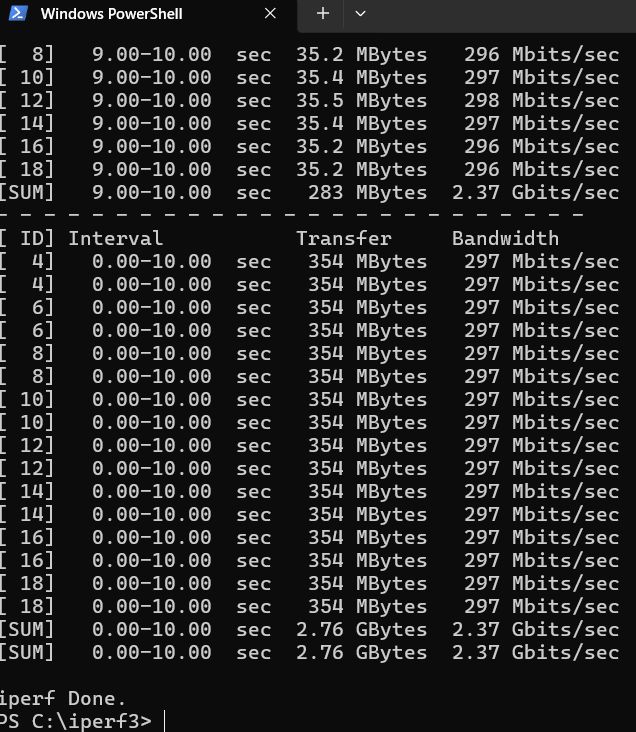
For real-world workflows, we recommend deploying at least a 2.5GbE high-speed network environment and pairing it with a current QNAP NAS model that provides at least 2.5GbE network ports, with some models also offering 10GbE connectivity. Real-world testing shows that during batch editing in PhotoDirector, importing large volumes of photos from a NAS over a 2.5GbE network delivers excellent performance. Even with this volume of data, the loading speeds are practically identical to the read speeds of a local drive.
This workflow not only avoids the occasional software crashes when performing intensive processing on network drives in some cross-platform systems, but also frees creators from the storage limitations of local drives. By using a NAS as a reliable media asset library together with a high-speed network, creators can achieve both high-capacity storage and efficient editing workflows. The following examples illustrate how a NAS can be integrated into both traditional and AI-powered media workflows.
In modern digital media workflows, NAS has evolved from a simple backup storage drive into a central platform for team collaboration and file streaming. With a high-speed network infrastructure in place, video editors and audio engineers can perform non-linear editing directly from mapped network drives, eliminating the time-consuming process of copying hundreds of gigabytes of project assets to local storage.
A proxy workflow enables teams to achieve smooth high-bitrate 4K and 8K multi-camera editing, keeping the original high-res media securely managed on the NAS. More importantly, NAS systems feature built-in RAID and snapshot technologies that add an extra layer of security for valuable media projects, safeguarding against the accidental file corruption and data loss that creators worry about most.
As media creation enters the era of artificial intelligence, AI-powered media workflow applications on NAS demonstrate even greater automation potential. Whether performing image noise reduction, super-resolution upscaling, automatic speech-to-text conversion, or intelligent object recognition and tag classification, these AI models require extremely high data throughput during processing.
By using a NAS as a media repository for AI workloads, users can leverage hardware-accelerated or GPU-expandable NAS systems to run local AI inference directly on the storage system. This approach not only minimizes dependency on external cloud services and saves bandwidth, but also ensures project privacy. Furthermore, it allows apps such as PhotoDirector to maintain continuous access to data stored on network drives, accelerating automated sorting and batch photo editing.
Reposted with permission from CyberQ
AI Disclosure: Some images and text in this article were created or refined with the assistance of Artificial Intelligence (AI) and reviewed by human editors.
