Categories

Blog posts about QNAP's products and technologies.
You do not need to manually convert HEIC to JPG to view or share them on Windows 11. With a QNAP NAS, the Qfile Pro app auto-backs up your photos, while the free CAYIN Media Viewer silently handles format compatibility in the background. You save time, and your photos are instantly ready for any device.
Modern smartphones default to the HEIC format, maintaining pristine image quality while saving 50% of storage space compared to traditional JPGs. However, as you accumulate tens of thousands of photos over the years, backing them up to a NAS often reveals a major flaw: viewing these HEIC files on Windows PCs or older devices hits a frustrating compatibility wall.
While it’s true that Windows 11 can natively view HEIC photos if you manually download extensions, “being able to open a file” and “having an automated workflow” are two completely different things. The best tool is one you don’t feel. When you are ready to share your photos, a compatible JPG should already be waiting for you.
If you are considering a NAS for photo backup, here is the truth: In 2026, you shouldn’t have to mass-convert HEIC to JPG manually at all. By combining a QNAP NAS with the Qfile Pro mobile app, you shift from passive software support to an active, automated service.
Qfile Pro: https://www.qnap.com/go/mobile-apps#QfilePro
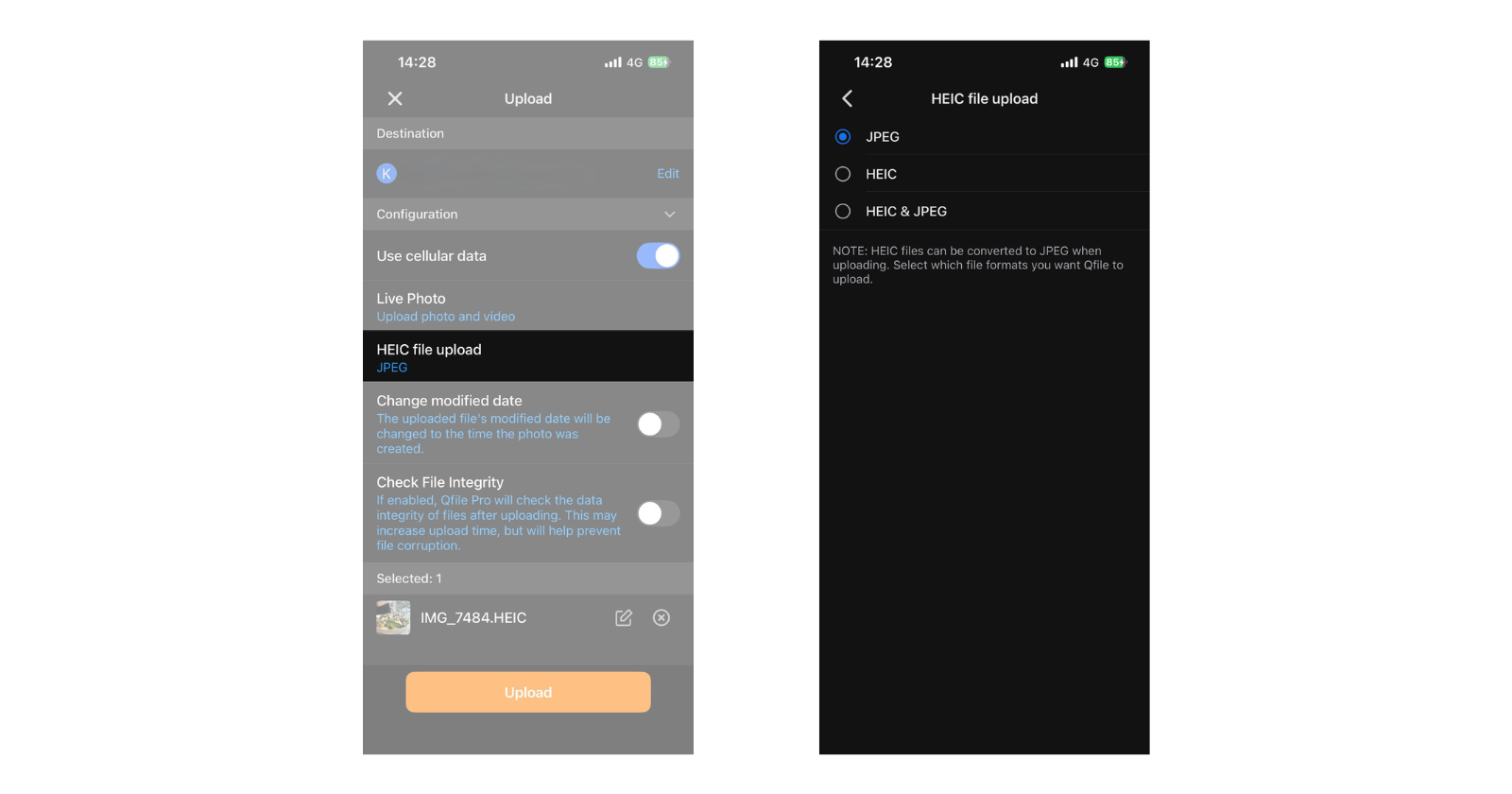
QNAP provides two distinct pathways to handle HEIC files, ensuring that whether you prioritize universal compatibility or maximum storage efficiency, your workflow is completely frictionless.
How it works: As your phone backs up photos to the NAS, Qfile Pro automatically converts HEIC to JPG in the background before saving it to the server. You shoot the photo, put your phone in your pocket, and the conversion is already done.
How it works: Qfile Pro uploads and preserves your photos in their original, space-saving HEIC format on your NAS. To solve viewing issues on your computers or TVs, you simply install the free CAYIN Media Viewer on the NAS.
In web design or modern IT, you can easily see the difference between traditional PC conversion methods and the QNAP automated cloud approach:
| Comparison Metric | Traditional Windows 11 Manual Workflow | QNAP + Qfile Pro Automated Workflow |
| Procedure | Connect phone → Transfer files → Open Photo App → Save As | Shoot photo → Put phone in pocket → Done |
| PC Involvement | Must keep the PC turned on, consuming power and your valuable work time | Zero PC involvement. The NAS handles processing 24/7 in the background |
| Batch Processing | High strain on PC performance; requires manual file selection | Unlimited automated processing without draining your smartphone’s battery |
| Privacy & Security | Relying on free online converters risks data leaks | Private cloud processing. Your data never leaves your home network |
If you choose the space-saving Pathway 2, getting your NAS ready to display HEIC files takes less than two minutes:
CAYIN Media Viewer: https://www.qnap.com/go/software/cayin-media-viewer
While Qfile Pro is your ultimate tool for automated uploads and format management, what if you want to intuitively browse through years of memories on your phone, just like Apple Photos or Google Photos? Enter the QuMagie Mobile App. Once your files are safely on the NAS (whether as JPG or HEIC), QuMagie uses AI-powered recognition to automatically categorize people, objects, and places. It provides a beautiful, timeline-based gallery right on your smartphone—giving you the premium browsing experience of a paid cloud service, but with the privacy and massive storage of your own NAS.
QuMagie: https://www.qnap.com/go/mobile-apps?category=entertainment#QuMagieMobile
This isn’t just about file formats; it is fundamentally an efficiency issue. In 2026, tech-savvy users don’t lack standard conversion tools—they lack time.
The true value of a modern photo backup solution is no longer just “can it store files,” but rather “can it silently manage modern formats so I don’t have to.” Whether you choose to convert to JPG on the fly for maximum compatibility or keep the storage-friendly HEIC format with CAYIN Media Viewer, QNAP ensures your photos are instantly accessible from anywhere, beautifully and stress-free.
AI Disclosure: Some images and text in this article were created or refined with the assistance of Artificial Intelligence (AI) and reviewed by human editors.
